
Send your review request emails using Klaviyo’s unique email trigger flows and templates, giving you full control over customer communications.
The Loox + Klaviyo integration is available on the Convert plan and up. Click here to upgrade your plan.
Activating the Klaviyo integration
To send review request emails to your customers through Klaviyo, Loox must be integrated with your Klaviyo account.
To set up the integration:
- Inside the Loox admin, head to Settings > Integrations > Klaviyo and click Manage.
- Click "Activate integration:"
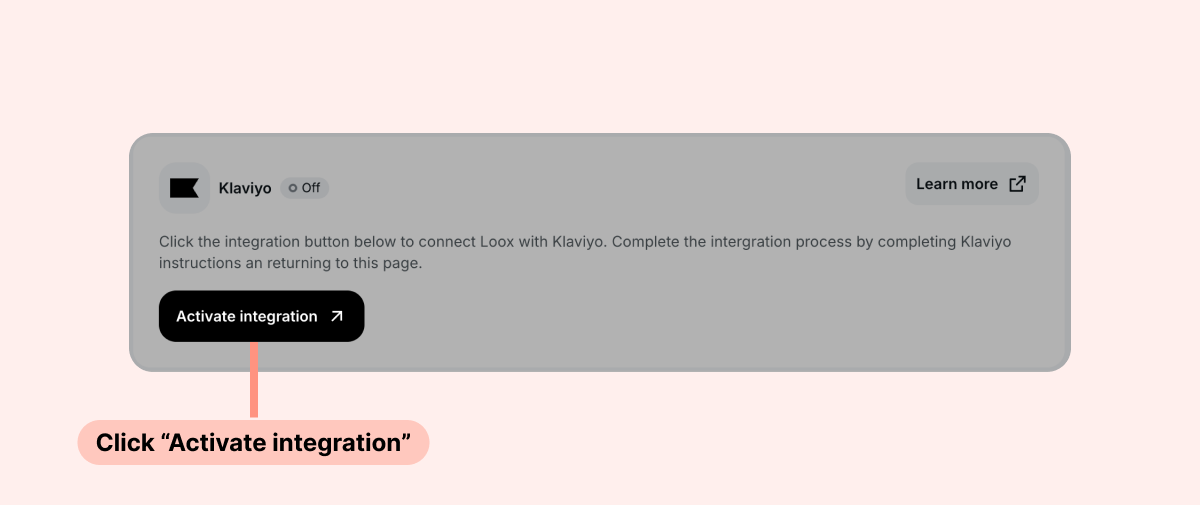
- You’ll be redirected to your Klaviyo account to allow Loox access. Once you allow Loox access, your accounts are connected.
- That's it! You can now send review request emails through Klaviyo.
Note: If you previously connected Loox with Klaviyo using an API key, please reconnect them to ensure your flows stay up to date: click "Disconnect", then "Activate integration", and follow Klaviyo's instructions. Right after you connect, Loox sends sample events with placeholder values to your own email address's Klaviyo profile. This makes the Loox metrics and all of their properties appear in Klaviyo's flow and segment builders, so you can build your flows before any real event is sent.
Creating a review request flow within Klaviyo
Create a review request email flow using a Loox trigger on Klaviyo.
Loox will trigger your flow whenever an order meets the email timing set on your Loox account.
To create an email flow using the Loox trigger:
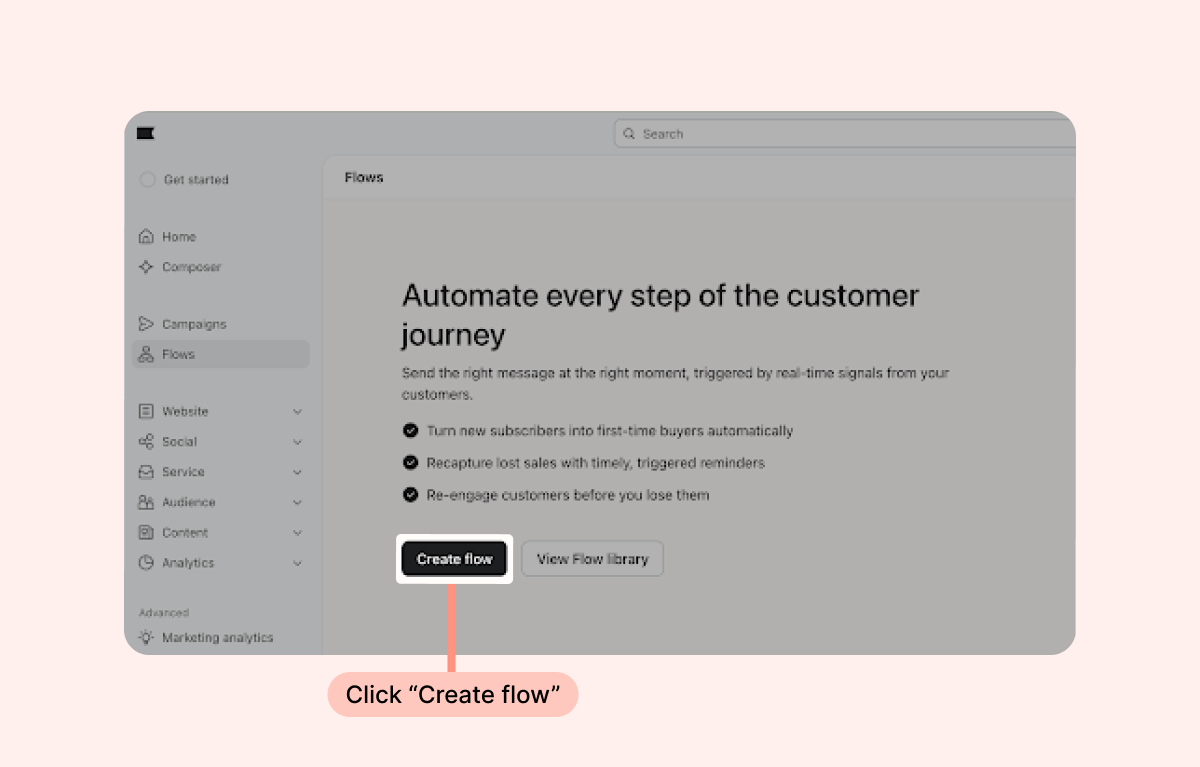
- Inside your Klaviyo account's Flows menu, click "Create flow:"
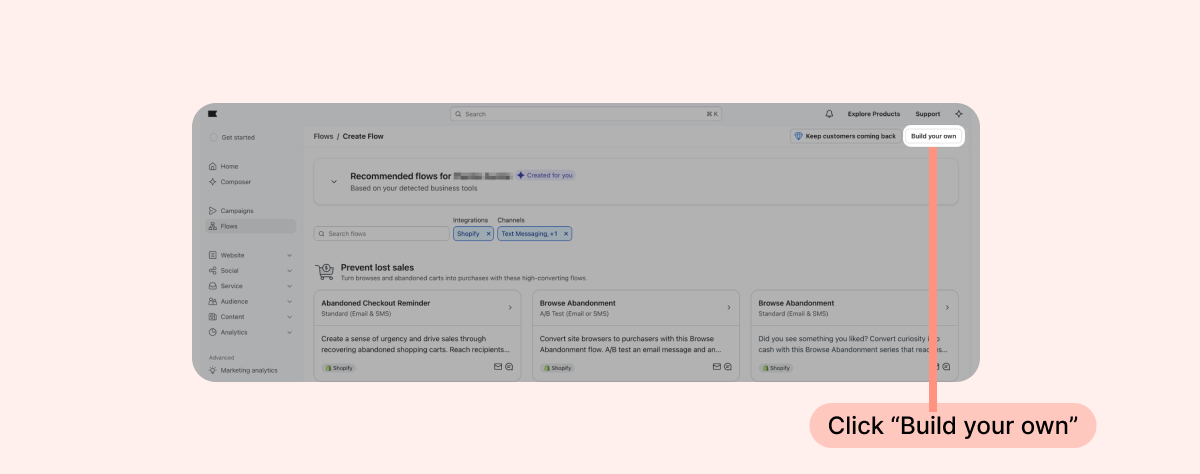
- Click "Build your own":
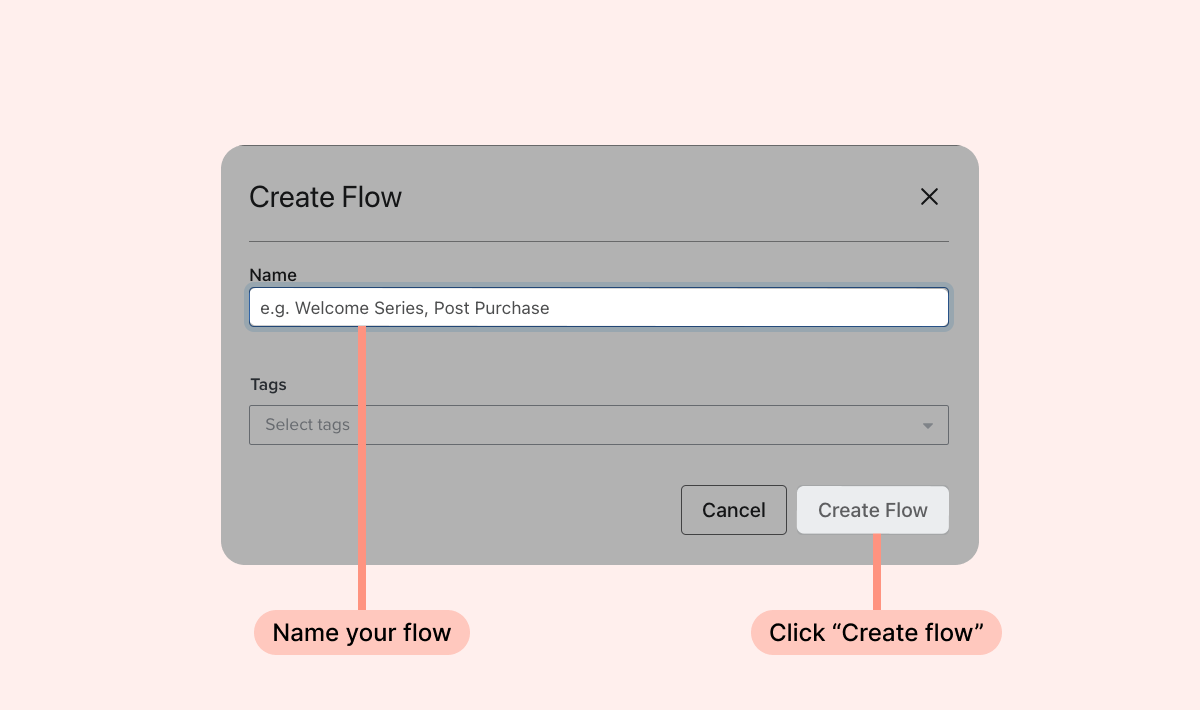
- Name your new flow. We recommend calling it "Loox Review Requests":
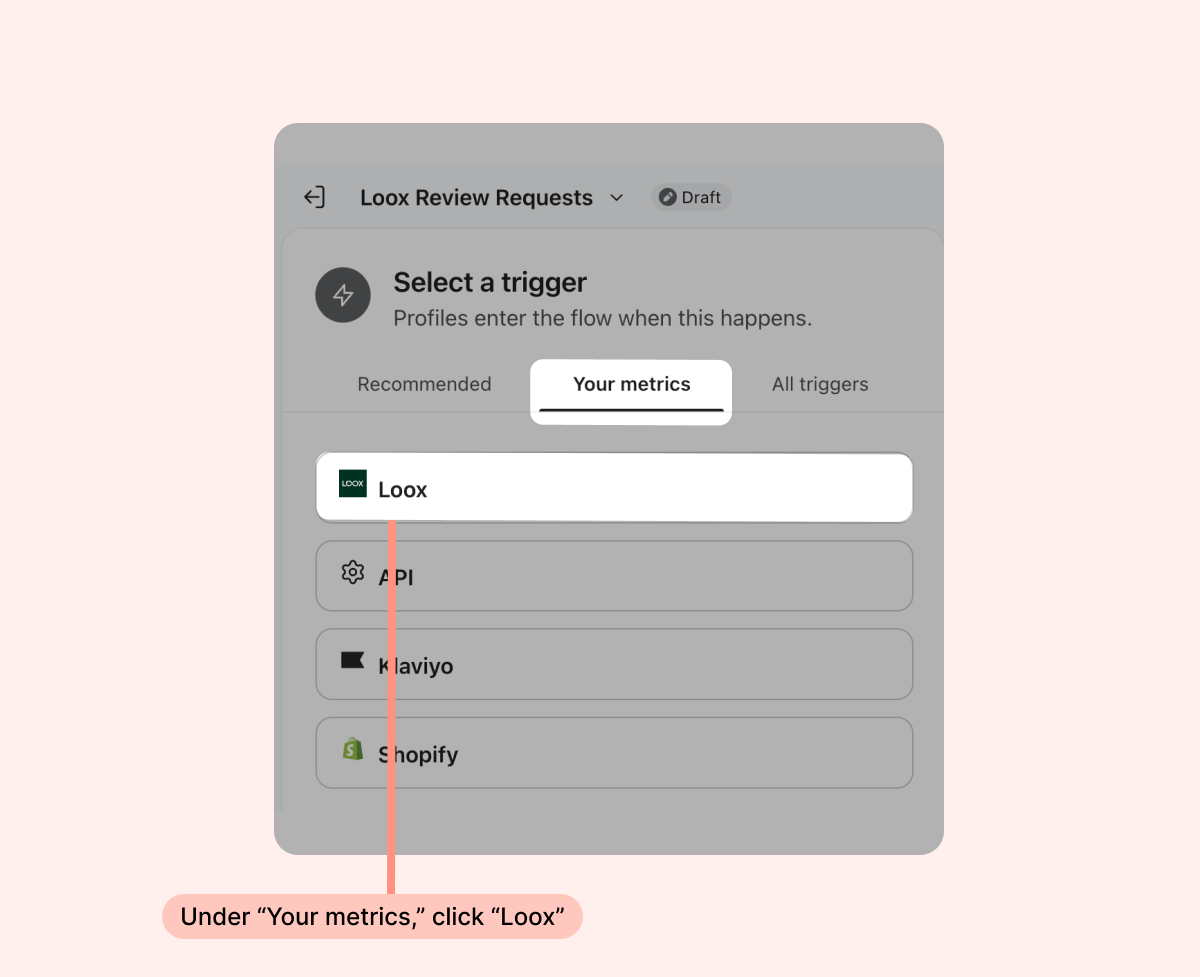
- On the lefthand side, go into "Your metrics" and select Loox.
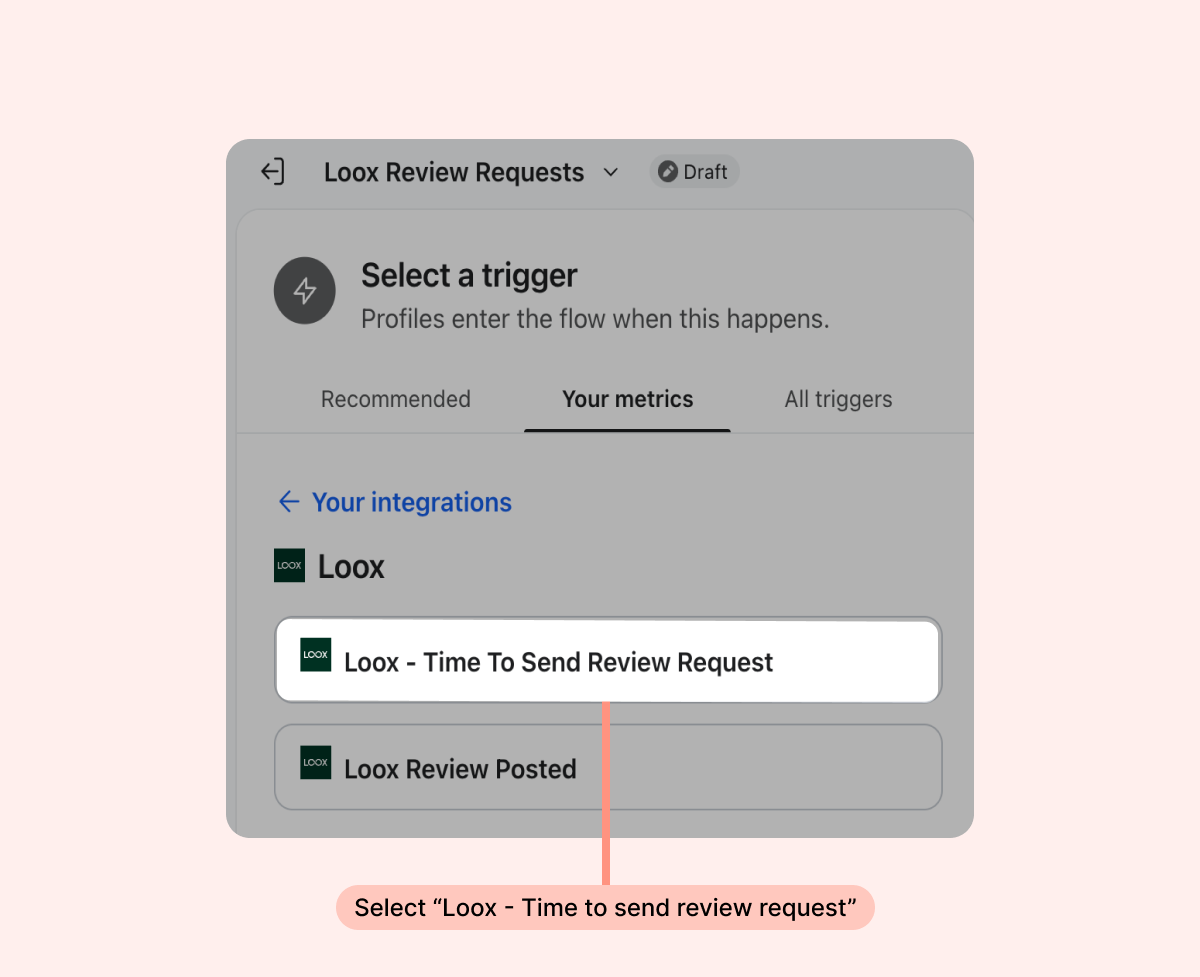
- Select "Loox - Time To Send Review Request":
- If relevant, set up the filters you want to apply to the flow and click "Done".
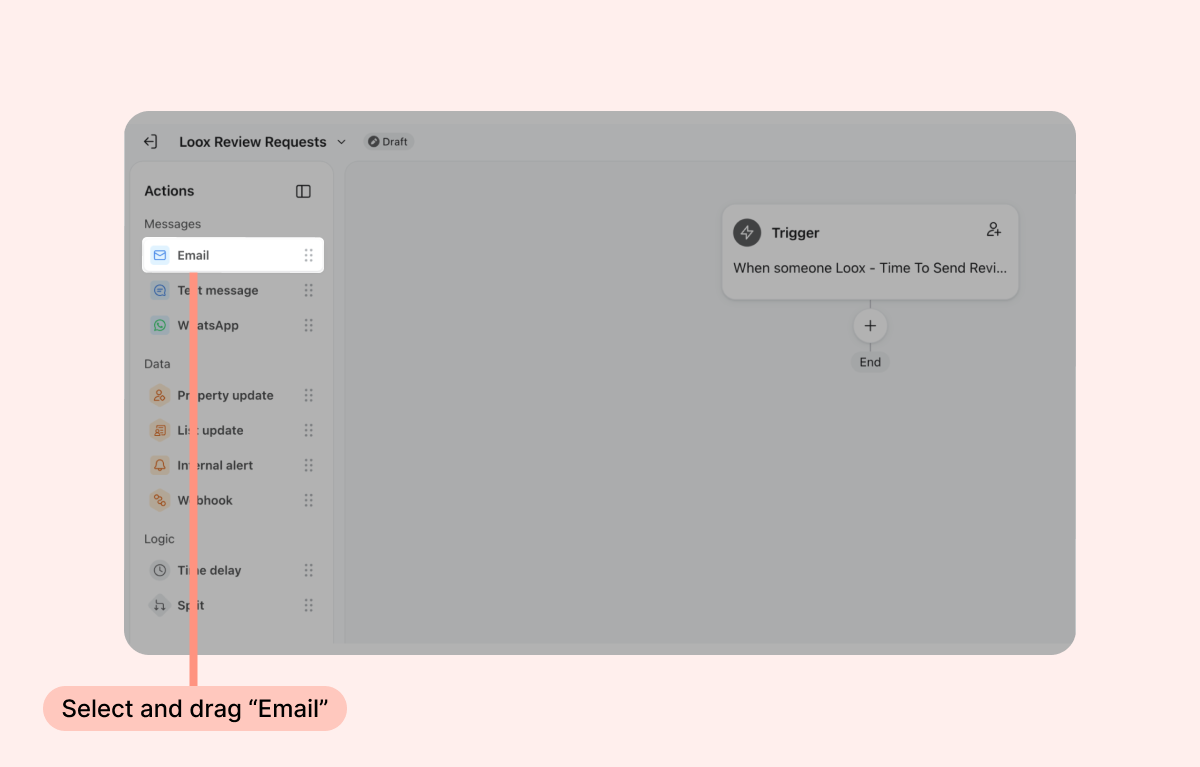
- Drag the “Email” option from the list of actions on the left:
- And drop it under the trigger in the flow template:
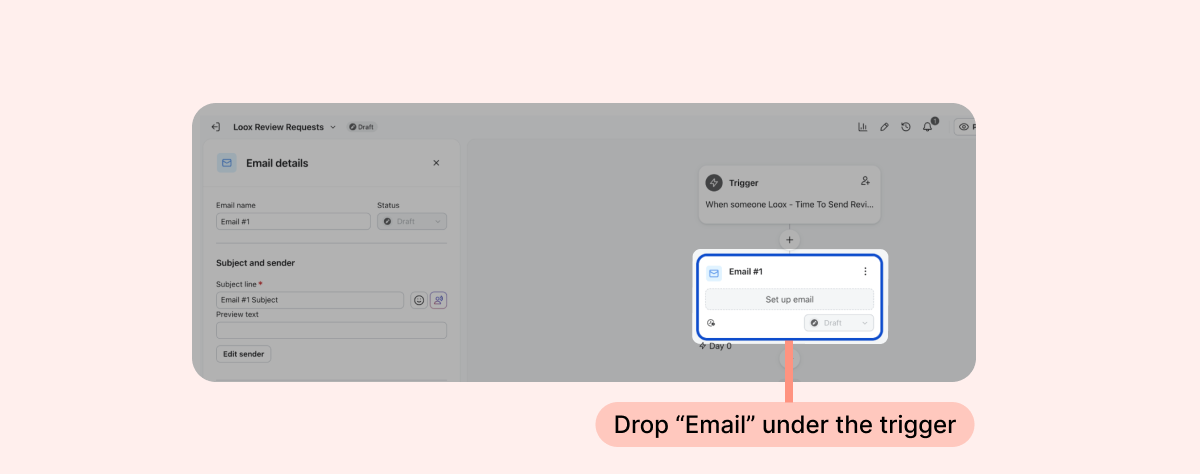
Configure your email's content, subject line, and template on the “Email details” menu that opens on the left. Click here to learn more about configuring your Klaviyo templates from Klaviyo’s end, and make sure to read about the Loox parameters you can integrate into your Klaviyo email body.
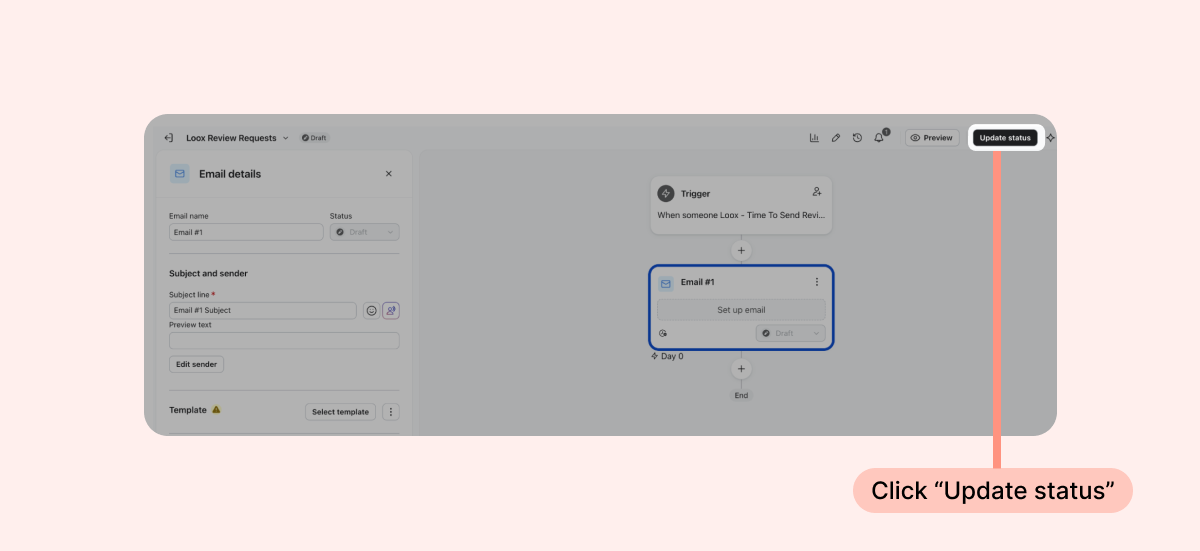
- Next, click “Update status:”
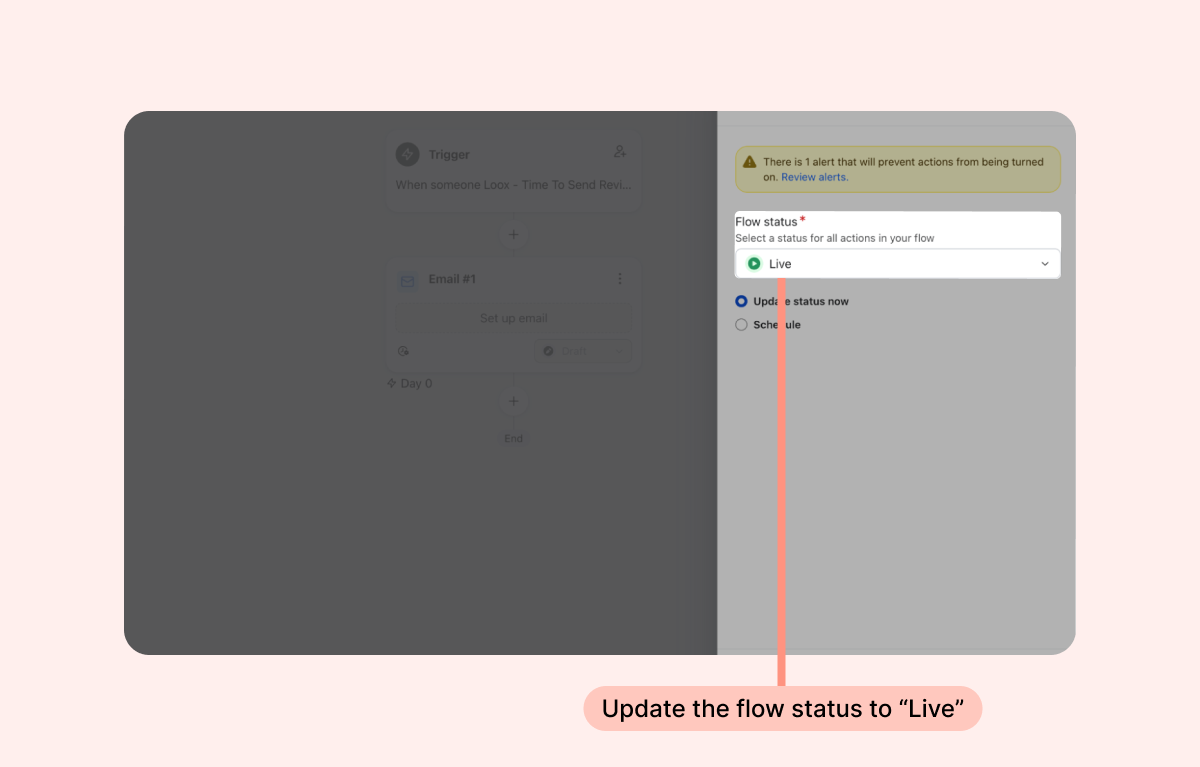
- On the Flow Status dropdown menu, update the status to "Live" and click Save.
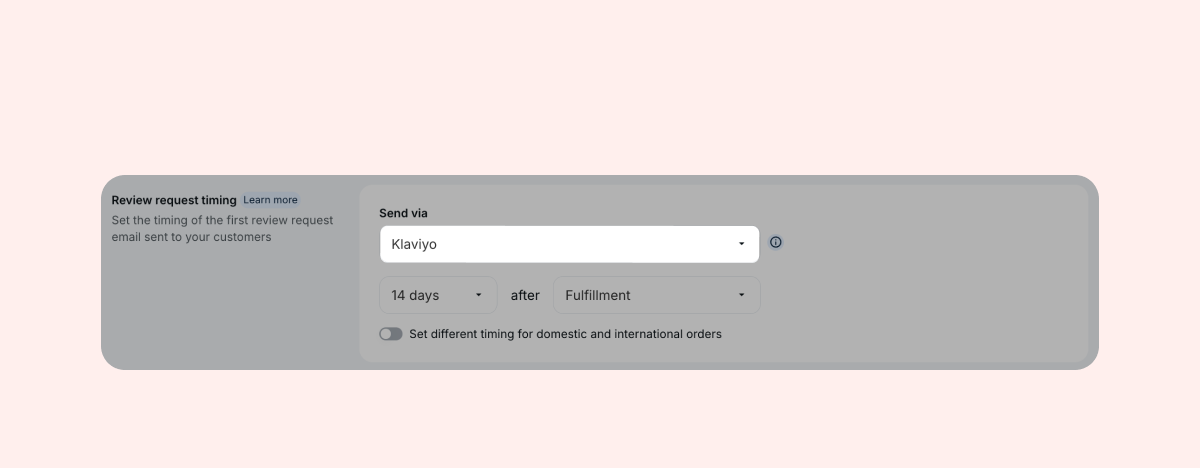
- Within your Loox admin, go to Collect reviews > Emails and scheduling.
- Under Review request timing, change your "Send via" email setting to "Klaviyo" and click Save.
Your Loox Review request emails will now be sent through Klaviyo.
Note: When your review requests are sent via Klaviyo, Loox doesn't send its own review request or reminder emails. Instead, Loox sends a trigger event to Klaviyo for the initial request and for each reminder, and you can set up Klaviyo flows to send each of those emails. Other follow-up emails Loox sends on your behalf to customers who submit reviews (e.g., Thank you email, Photo/Video reminder email, Discount reminder for photo/video review) will still be sent according to your Loox account settings.
Creating review request reminder flows within Klaviyo
Send a reminder email to customers who haven't submitted a review yet directly from your Klaviyo account.
In addition to the initial review request trigger, Loox sends a separate trigger event to Klaviyo for each review request reminder:
- Loox - Time To Send Review Request Reminder - sent when the first reminder is due
- Loox - Time To Send Second Review Request Reminder - sent when the second reminder is due
Each trigger follows the reminder settings in your Loox account, including the number of reminders and their timing, and is only sent if the customer hasn't submitted a review yet. For example, if you set Loox to send one reminder, only the first reminder trigger will be sent.
To create a reminder flow using a Loox reminder trigger:
- Inside your Klaviyo account's Flows menu, click "Create flow:"
- Click "Build your own":
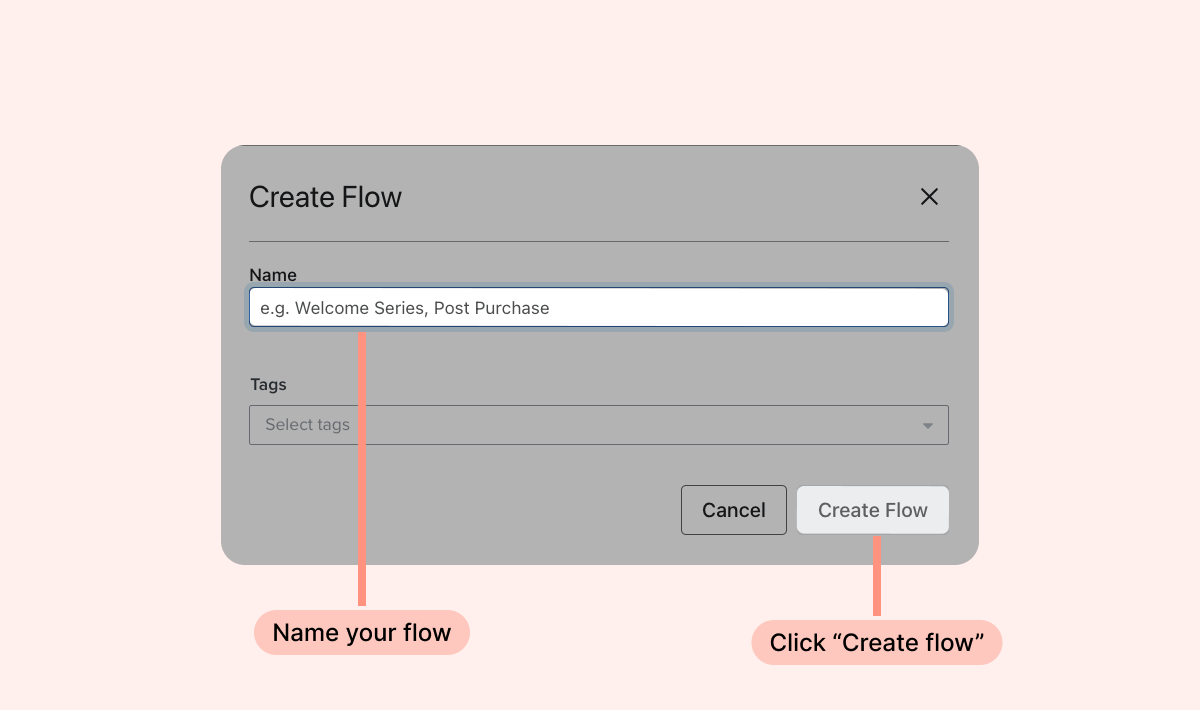
- Name your new flow. We recommend calling it "Review Request Reminder Flow":
- On the lefthand side, go into "Your metrics" and select Loox.
- Select "Loox - Time To Send Review Request Reminder":
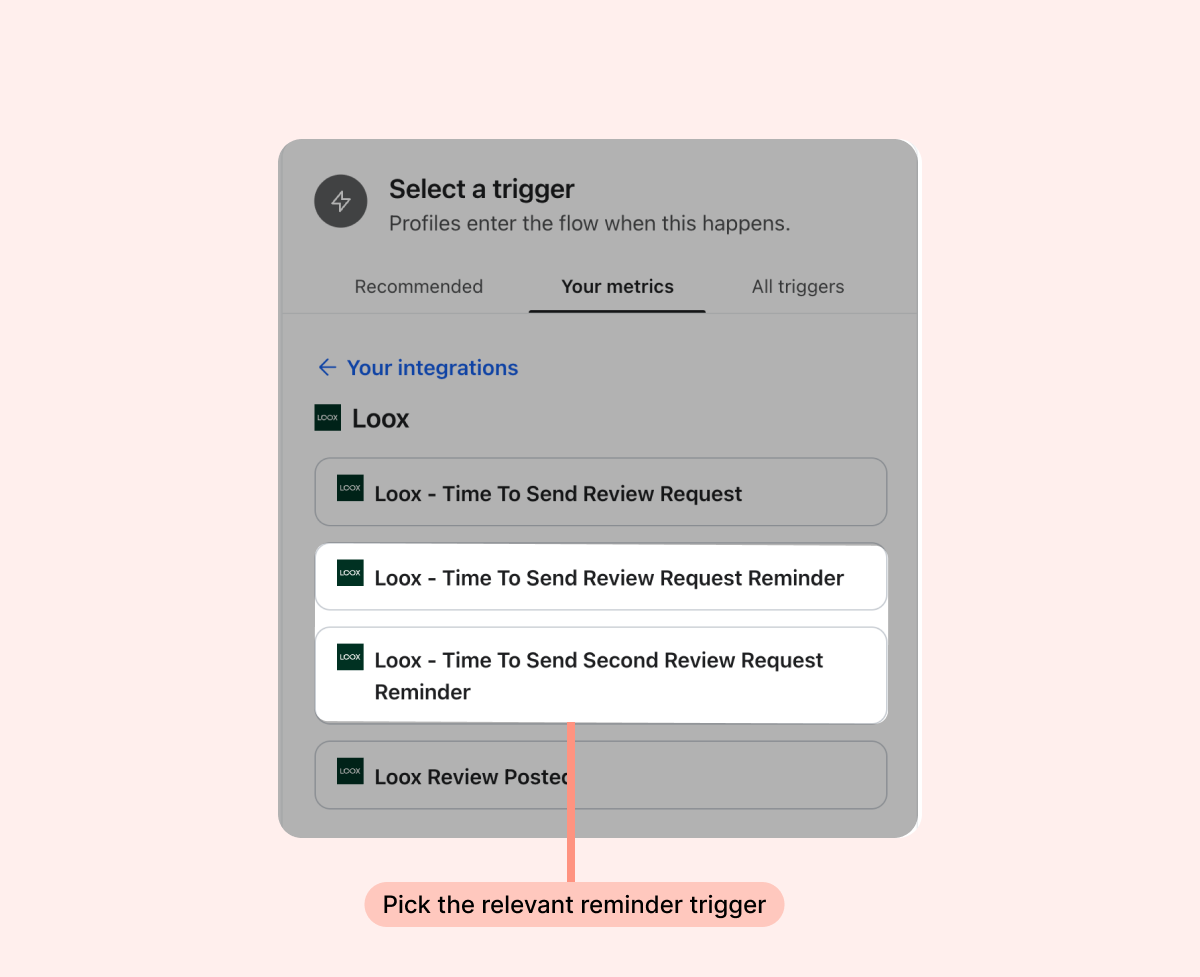
Tip: If you don't see the reminder triggers on Klaviyo, try disabling and then reconnecting the integration with Klaviyo via your Loox admin.
- If relevant, set up the filters you want to apply to the flow and click "Done."
- Drag the “Email” option from the list of actions on the left:
- And drop it under the trigger in the flow template:
Configure your email's content, subject line, and template on the “Email details” menu that opens on the left. Click here to learn more about configuring your Klaviyo templates from Klaviyo’s end, and make sure to read about the Loox parameters you can integrate into your Klaviyo email body.
- Next, click “Update status:”
- On the Flow Status dropdown menu, update the status to "Live" and click Save.
- To send a second reminder, repeat these steps in a new flow using the "Loox - Time To Send Second Review Request Reminder" metric.
The reminder triggers include the same information as the review request trigger, so you can use the same Loox parameters in your reminder email templates.
You can choose how many reminders your customers receive, and when each trigger is sent, from the Review request reminder email's Preferences page. Learn more about review request reminders.
Tip: Creating a new Klaviyo email template from scratch? read our Using Loox Parameters in Klaviyo Review Request Emails help article to learn how to add your custom CTA's.
If you have more questions, contact our Support team. We’re available 24/7 and happy to help!