
Ensure your brand consistently shines through by customizing your Loox widgets. Easily add your brand logo, customize widget corners, star icons, and fonts to match your store's aesthetic.
Why customize your branding?
Aligning Loox widgets with your brand identity creates a cohesive customer experience and builds brand recognition and trust. Explore our widget inspiration page for creative ways to highlight your brand.
Uploading your store's logo
To add your store's logo, follow the steps below:
- Within "Settings", go to "Branding".
- Under "Logo", click "Upload image" and select your logo.
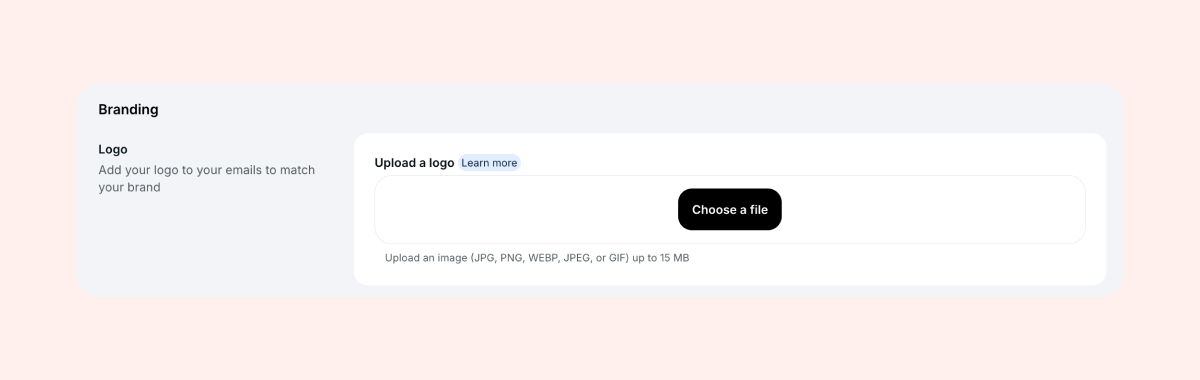
If your logo's image file is too large, re-size it using this online tool. If the logo appears too large (visually) in your emails, you can add transparent padding around the image using this online tool to make the logo appear smaller in your emails.
Setting the default corner radius for widgets
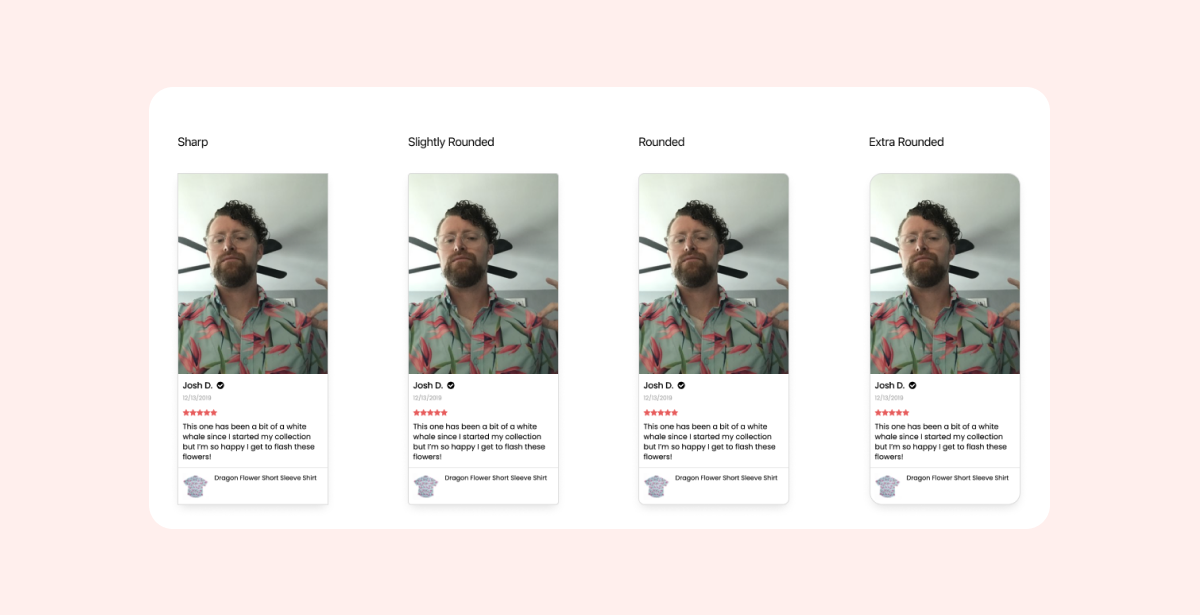
Customize the corners of your widgets:
- From the "Corner radius" setting's dropdown, select your preferred corner radius design:
Customizing star rating icons
To edit the Rating Icons displayed on your store:
- Within "Settings", go to "Branding".
- Under “Star rating”, you can select your preferred Star rating icon and change its color using the color selector tool or a specific hex code.
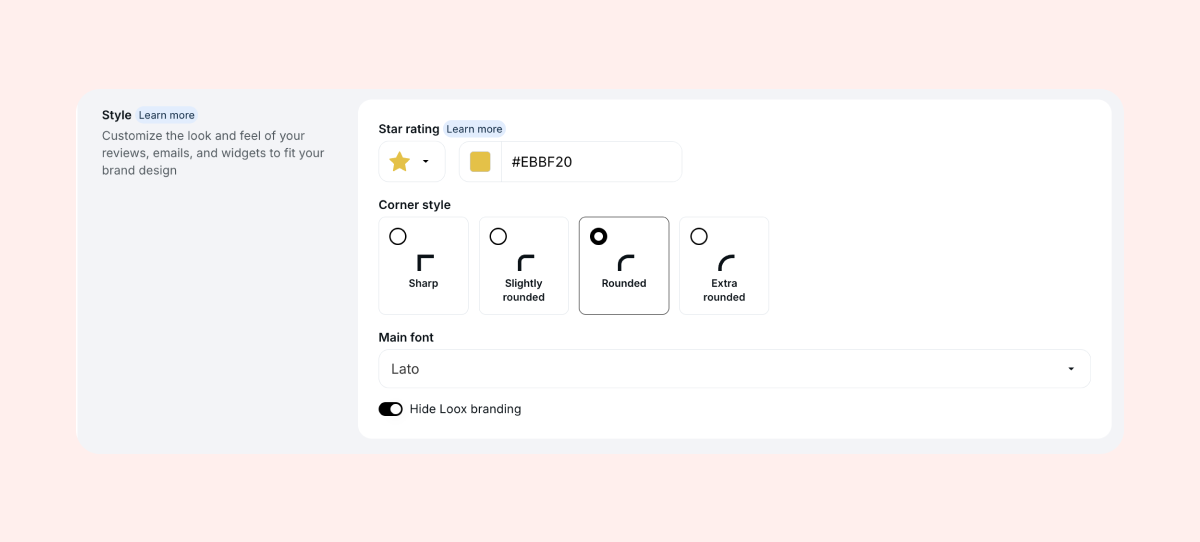
The changes are automatically applied to all of your Loox Reviews, Rating, and Carousel widgets, and to your review form.
Selecting widget fonts
By default, all Loox widgets fonts are set to "Poppins". To change your Main font displayed on your Loox widgets:
- Within "Settings", go to "Branding - Style".
- Under "Main font", select your preferred font from the drop-down menu or type in a specific font. We support all Google Fonts.
Removing Loox branding
To remove all Loox branding from your store's pages:
- Within "Settings", go to "Branding - Style".
- Toggle "Hide Loox branding" on.
Note: This option is available on the Convert and Unlimited Plans. Click here to upgrade your plan.
Adding a default banner image to your Loox emails
To add a banner to override your default email banner:
- Within "Settings - General", go to "Email settings".
- Open "Email appearance".
- Toggle on "Enable banner for all emails":
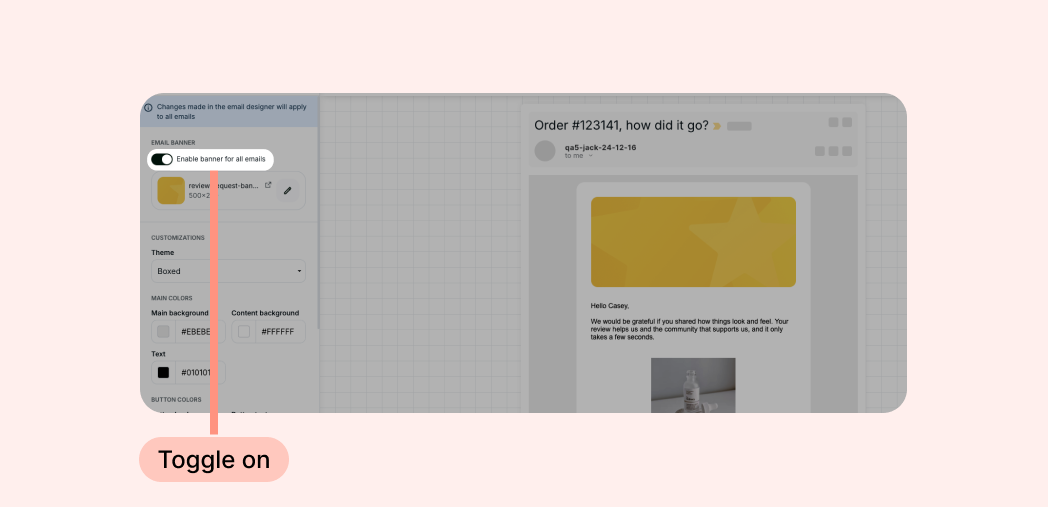
4. Click the “pencil icon” button to add your banner image:
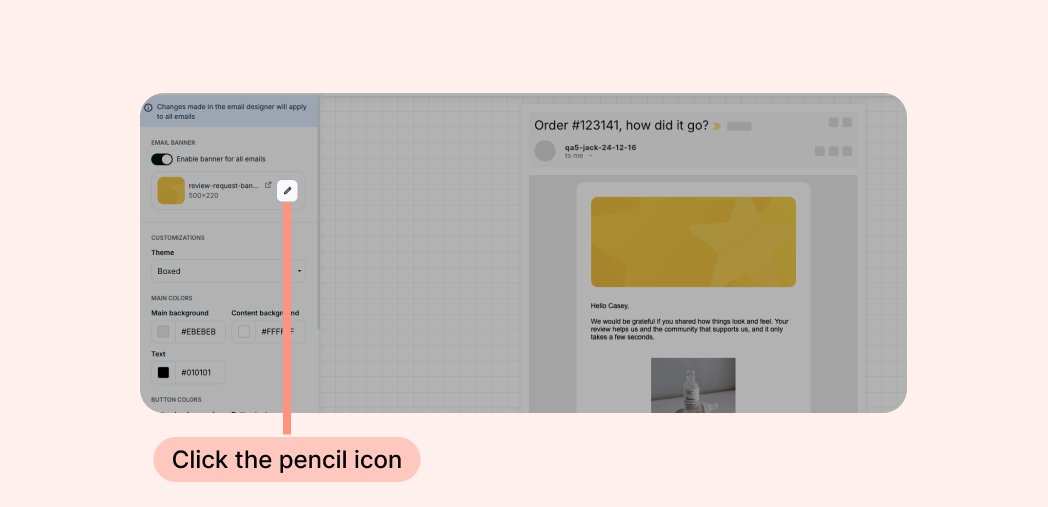
Once enabled, the selected email banner will be applied to all your Loox emails.
Tip: Check out our email inspiration page:
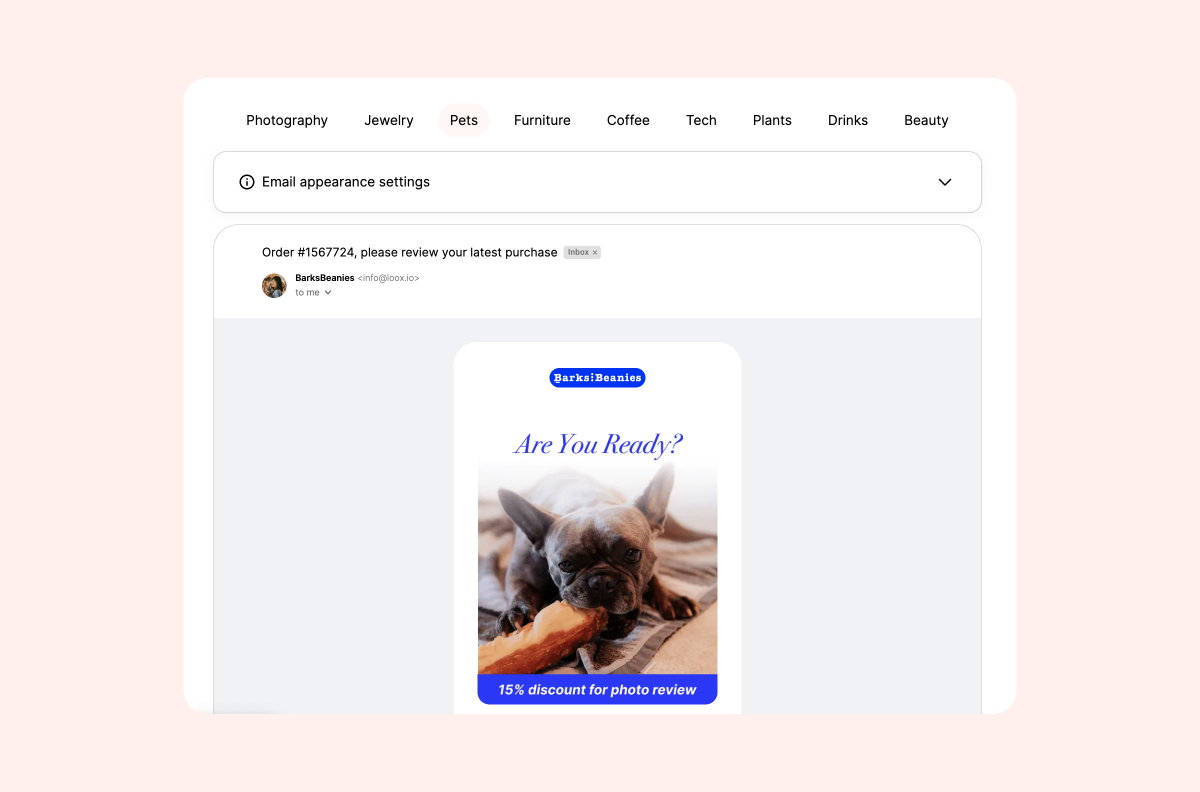
Note: Banner images must be uploaded in JPG, PNG, or GIF format, up to 5 MB. The header image will be displayed at 500px width. For best results, upload an image between 500 and 1200px wide.
Customizing your email appearance
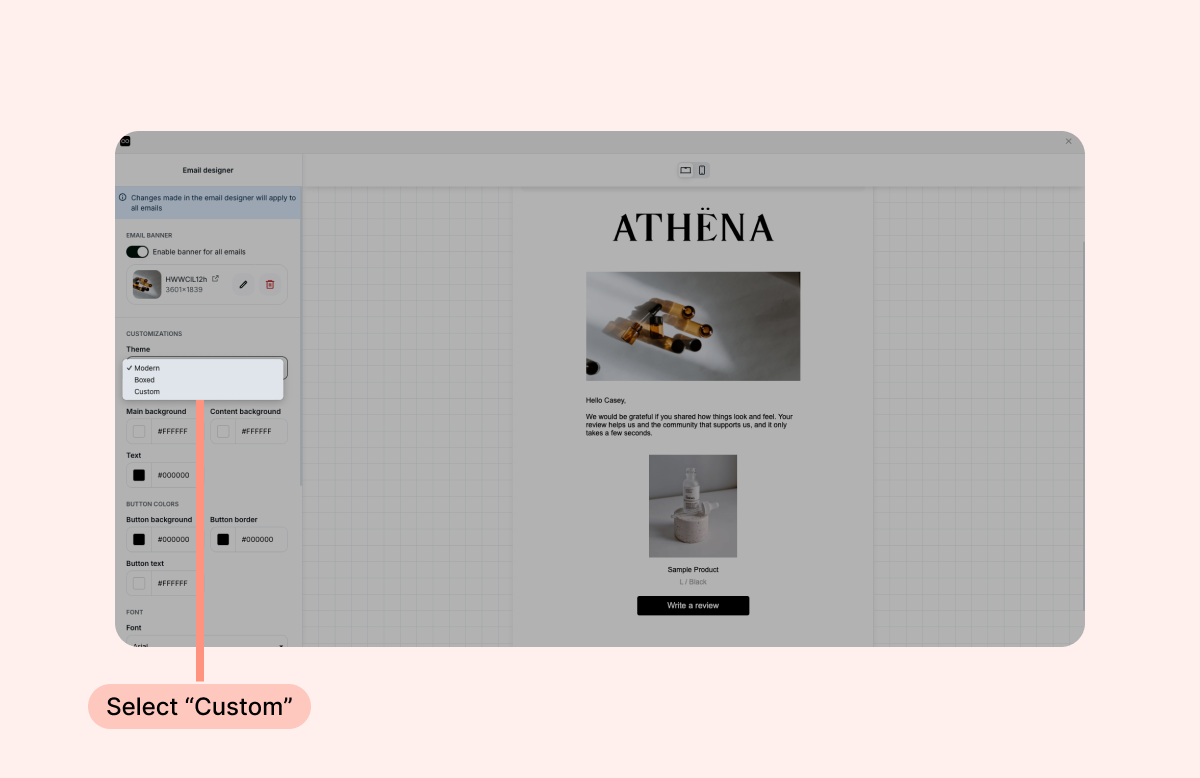
We offer 3 email formats:
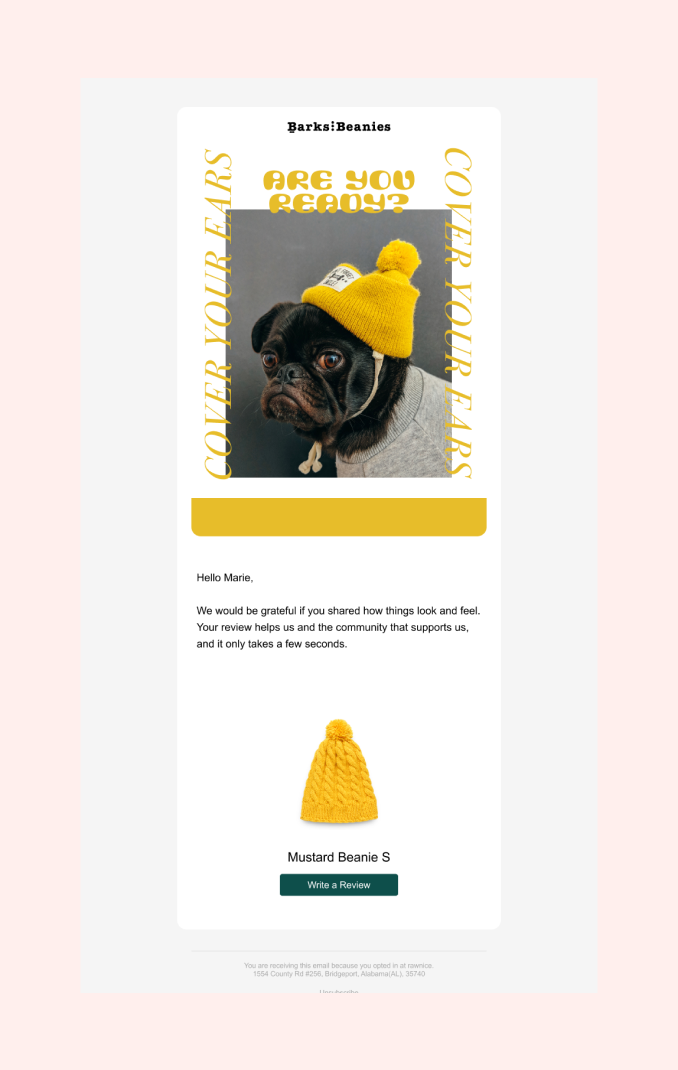
- Boxed: Adds a grey background behind your text border
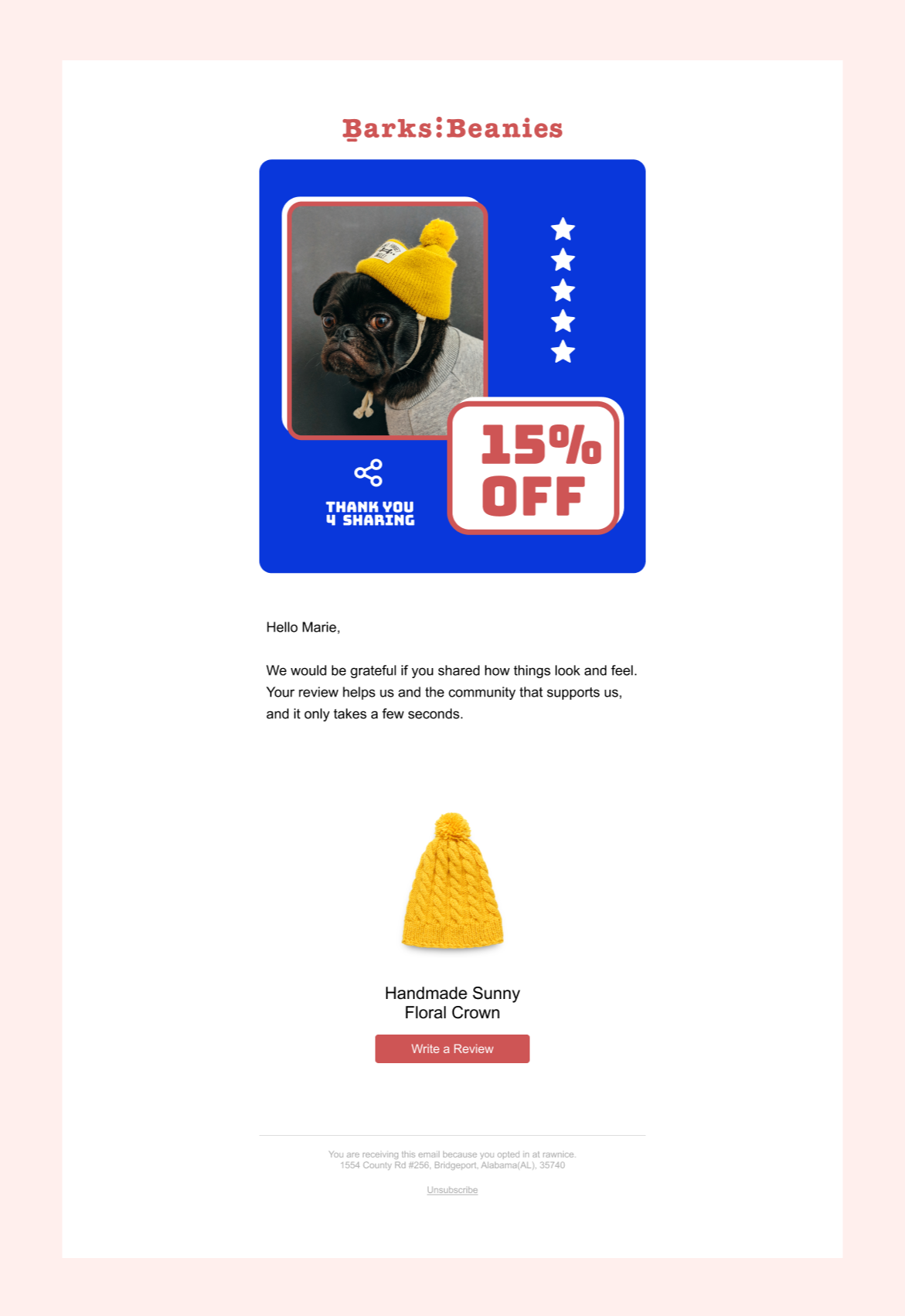
- Modern is a borderless email
- Custom
Boxed:
Modern:
Custom:
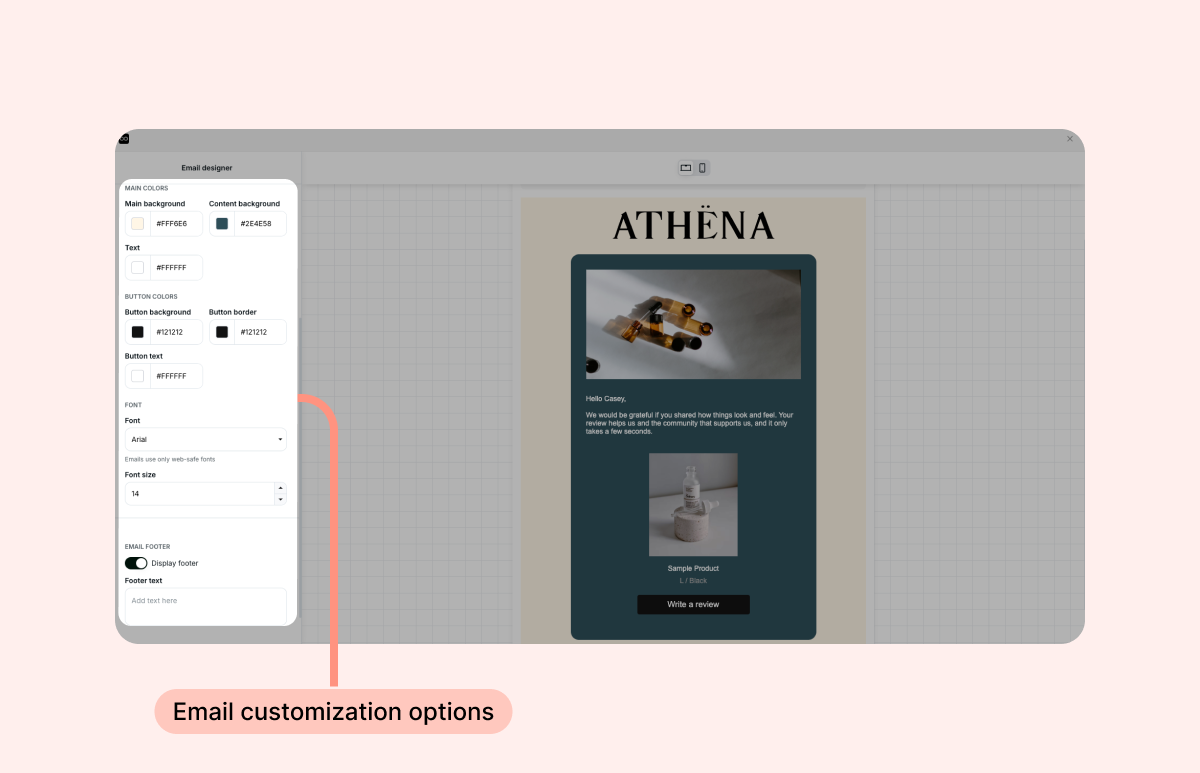
Customize each element of your emails manually:
- Email's background-color
- Text's background-color
- Text's color
- Button's background-color
- Button's title color
- Email's font & font size
To customize your Loox emails appearance:
Within "Settings - General", go to "Email settings".
- Open "Email appearance".
- Open the "Theme" dropdown and select "Custom":
4. Customize all the email elements using the color selector or insert your desired color hex code:
Note: All customization adjustments will apply to all Loox emails sent to your customers (e.g., Review requests, Review request reminders, Photo/video reminders, Discount reminders, etc.).