
Add and customize Loox widgets on your store's pages using our built-in integration with Shopify's Online Store 2.0 themes.
This article will guide you through adding a Loox widget to your theme, adjusting its location using the Theme Editor's drag-and-drop feature, and the customization options available for each widget.
Star Rating Widget

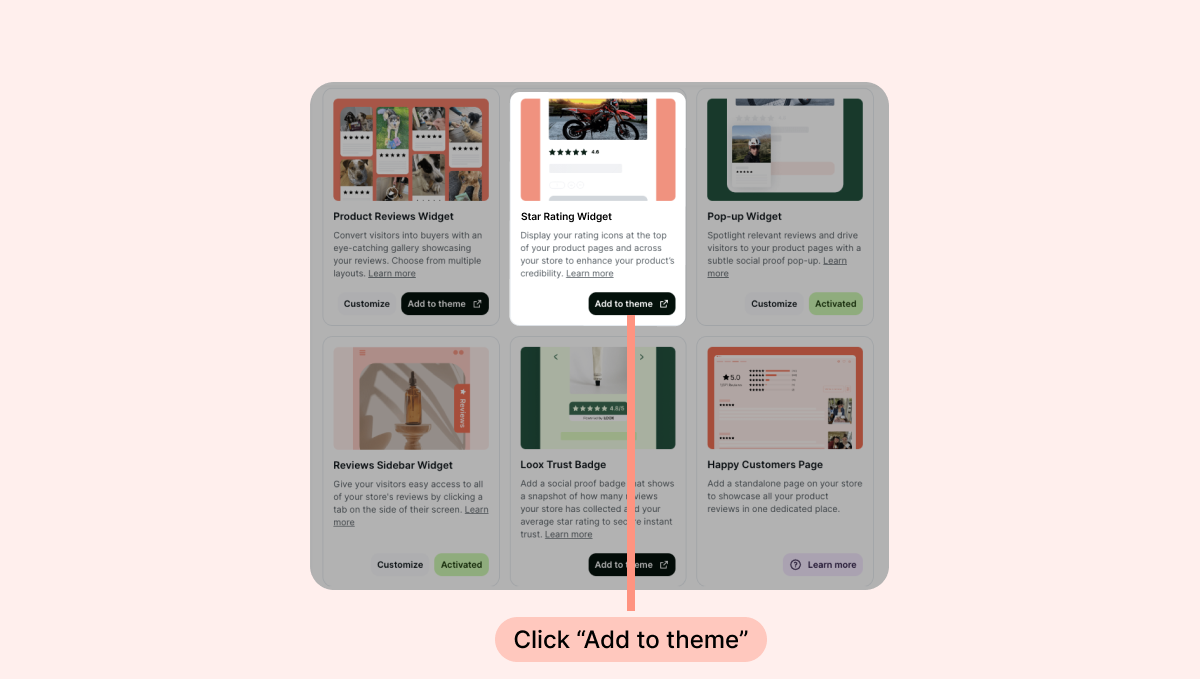
To add the Loox Star Rating widget to your product pages from the Loox app:
- Inside the Loox app, go to the "Widgets" settings section.
-
Click "Add to theme" under "Star Rating Widget"
-
Inside the Shopify Theme Editor, drag and drop the widget app block where you would like it to appear (we recommend placing it under the product title):
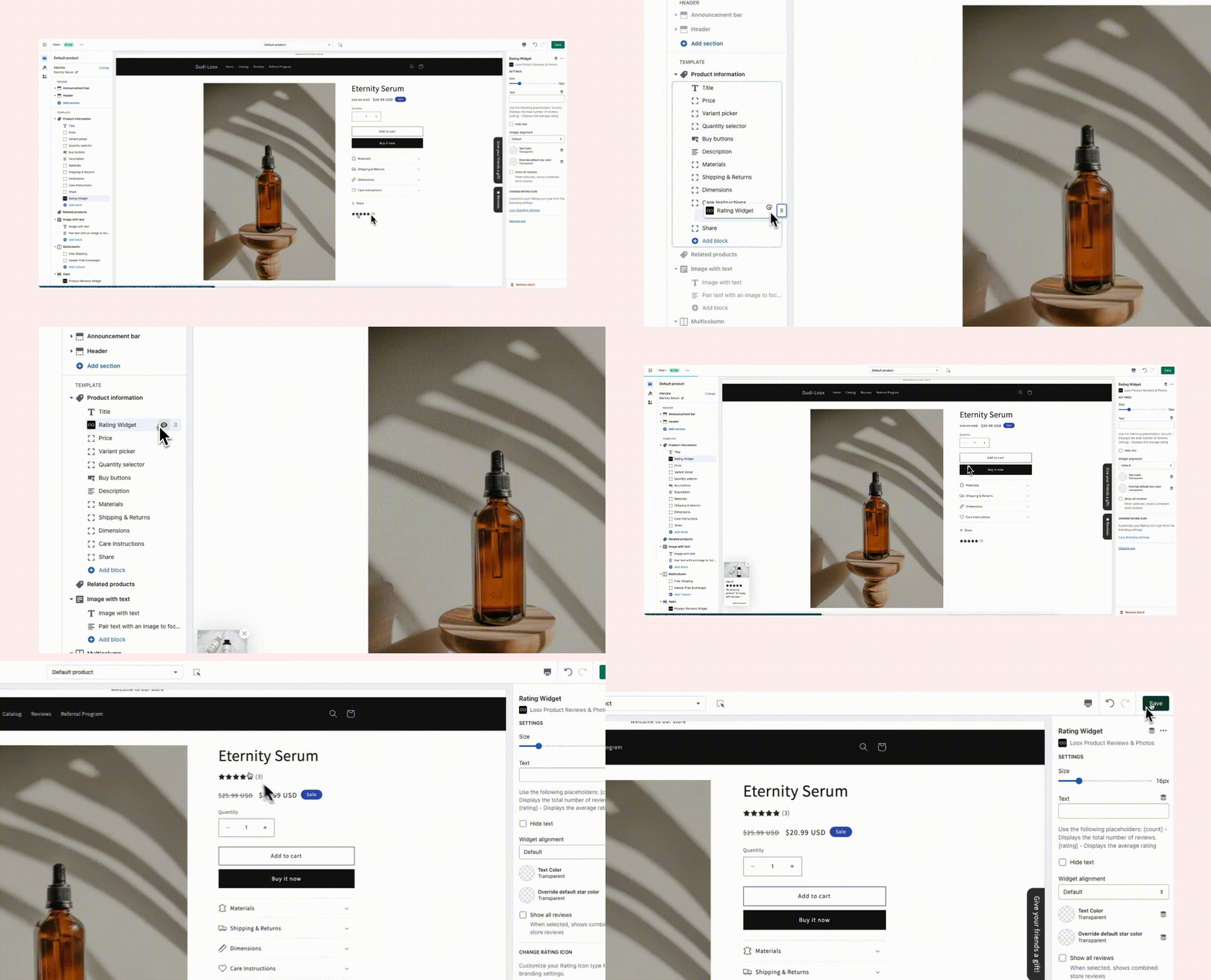
- Customize the widget’s appearance to match your brand’s design (learn more below).
- Click "Save".
Reviews Widget

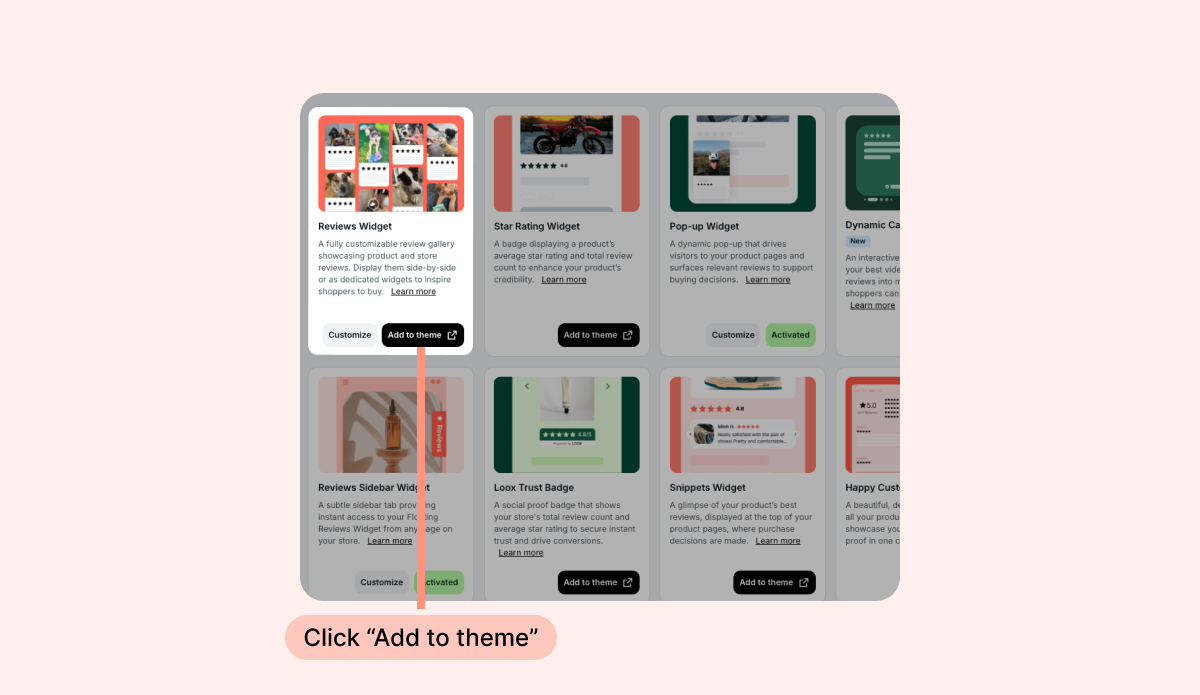
To add the Reviews Widget from the Loox app:
- Open the "Widgets" settings section.
-
Click "Add to theme" under "Reviews Widget":
Inside the Shopify Theme Editor, drag and drop the widget app block where you would like it to appear.
- Customize the widget’s appearance to match your brand’s design.
- Click "Save".
Cards Carousel Widget

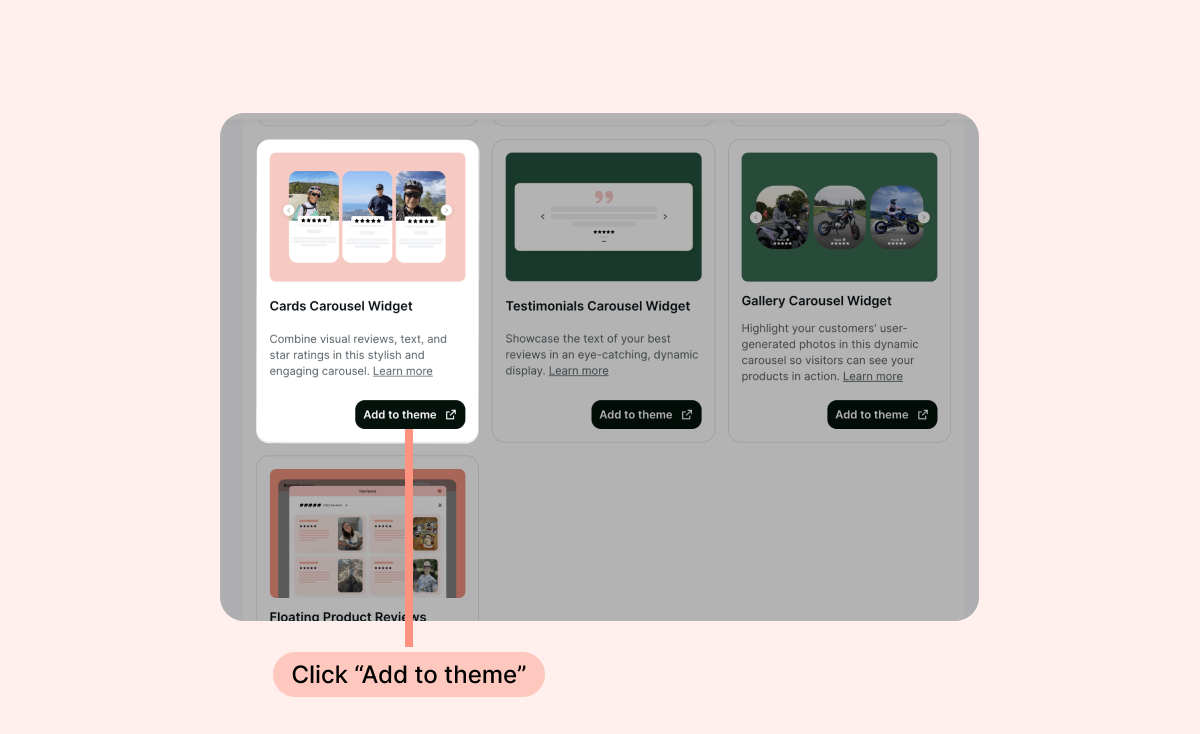
To add the Cards Carousel Widget (or any other Carousel Widget) to your pages from the Loox app:
- Inside the Loox app, go to the "Widgets" settings section.
-
Click "Add to theme" under "Cards Carousel Widget":
Inside the Shopify Theme Editor, drag and drop the widget app block where you would like it to appear:
- Customize the widget’s appearance to match your brand’s design.
- Click "Save".
Trust badge

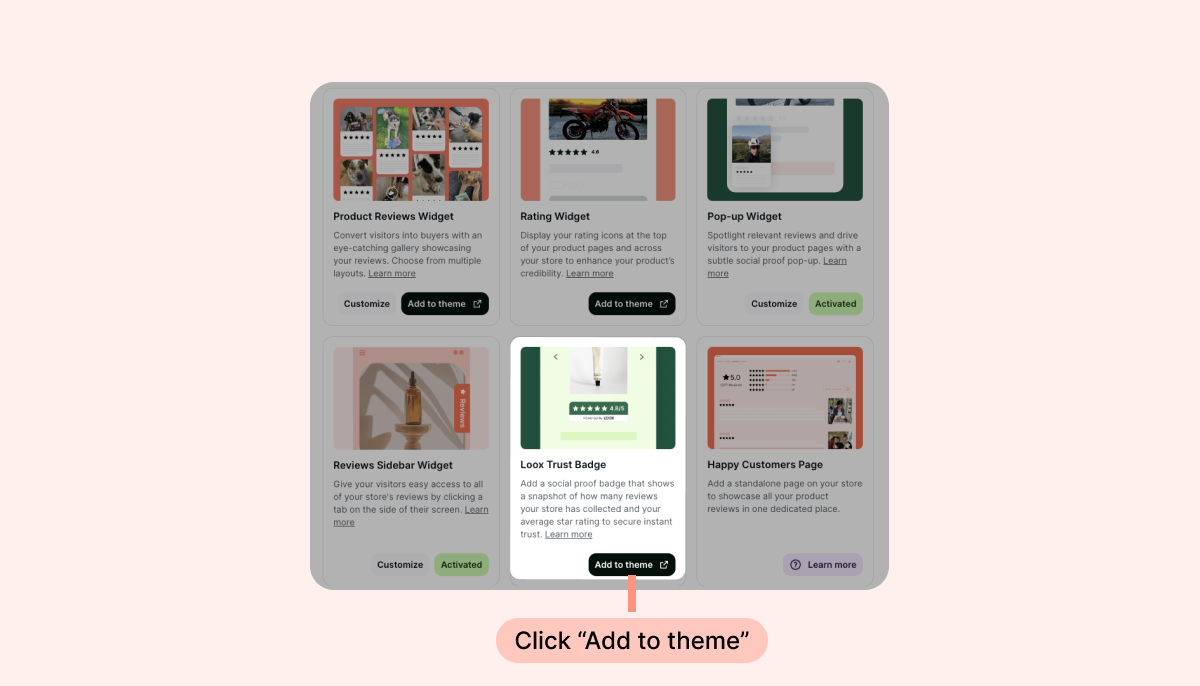
To add the Loox Trust Badge to your homepage from the Loox app:
- Inside the Loox app, go to the "Widgets" settings section.
-
Click "Add to theme" under "Loox Trust Badge":
Inside the Shopify Theme Editor, drag and drop the widget app block where you would like it to appear.
- Customize the widget’s appearance to match your brand’s design.
- Click “Save”.
Snippets Widget

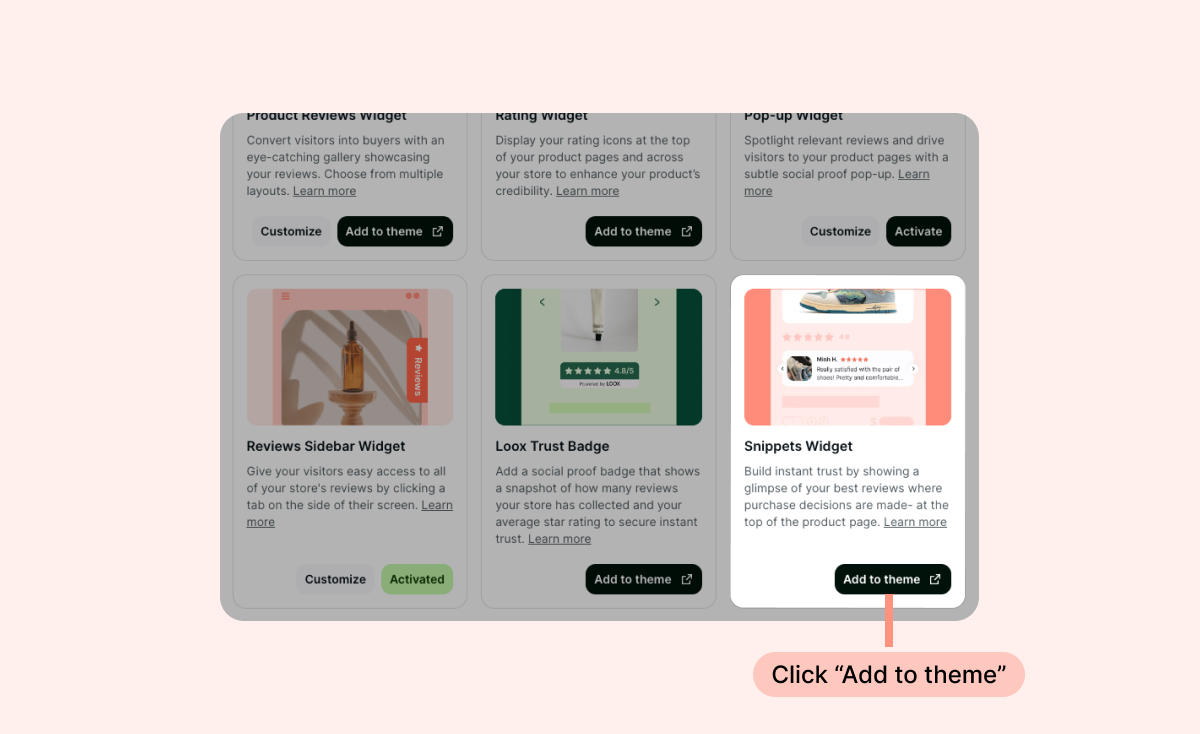
To add the Snippets Widget from the Loox app:
- Inside the Loox app, go to the "Widgets" settings section.
-
Click "Add to theme" under "Snippets Widget":
Inside the Shopify Theme Editor, drag and drop the widget app block where you would like it to appear.
- Customize the widget’s appearance to match your brand’s design.
- Click "Save".
Video Slider Widget

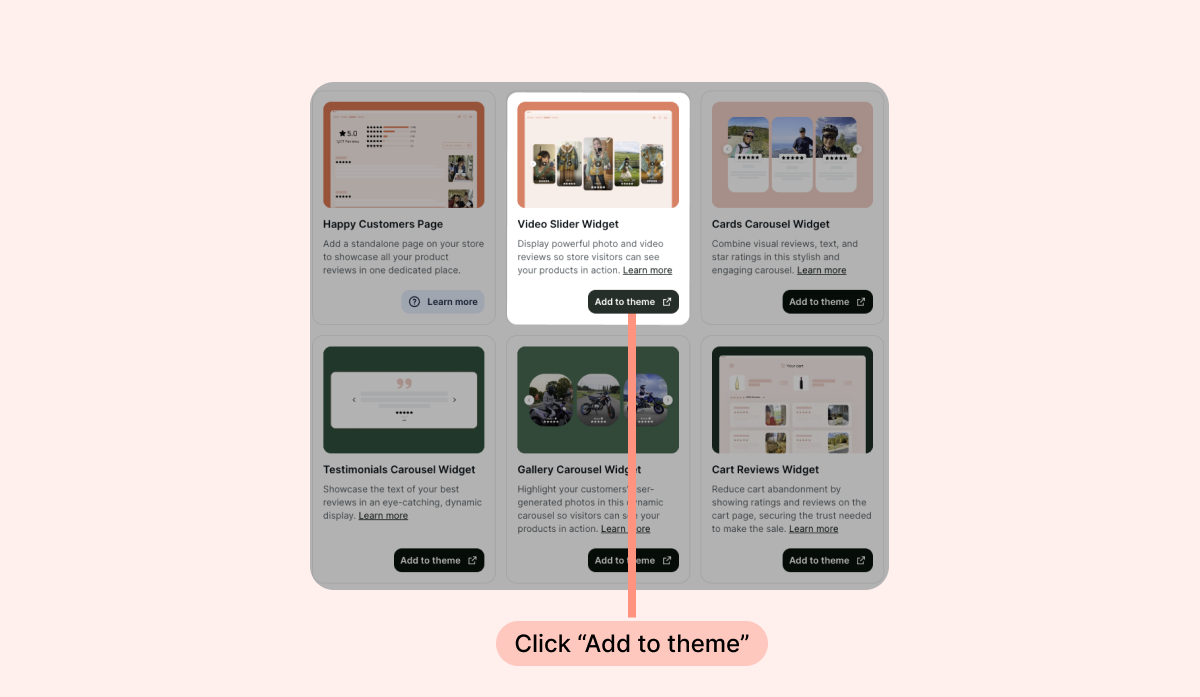
To add the Video Slider Widget from the Loox app:
- Inside the Loox app, go to the "Widgets" settings section.
-
Click "Add to theme" under "Video Slider"
Inside the Shopify Theme Editor, drag and drop the widget app block where you would like it to appear.
- Customize the widget’s appearance to match your brand’s design.
- Click "Save".
Note: If you do not see any Loox widget on the Theme Editor, please re-integrate Loox with your theme and try again.