Loox Referrals is available on the Convert and Unlimited Plans. Click here to upgrade your plan.
Encourage customers to refer friends and drive more sales to your store with the Loox Post-Purchase Referrals Widget. Displayed on the Thank you and Order Status pages, this widget allows customers to easily share their unique referral link and earn rewards for successful referrals.
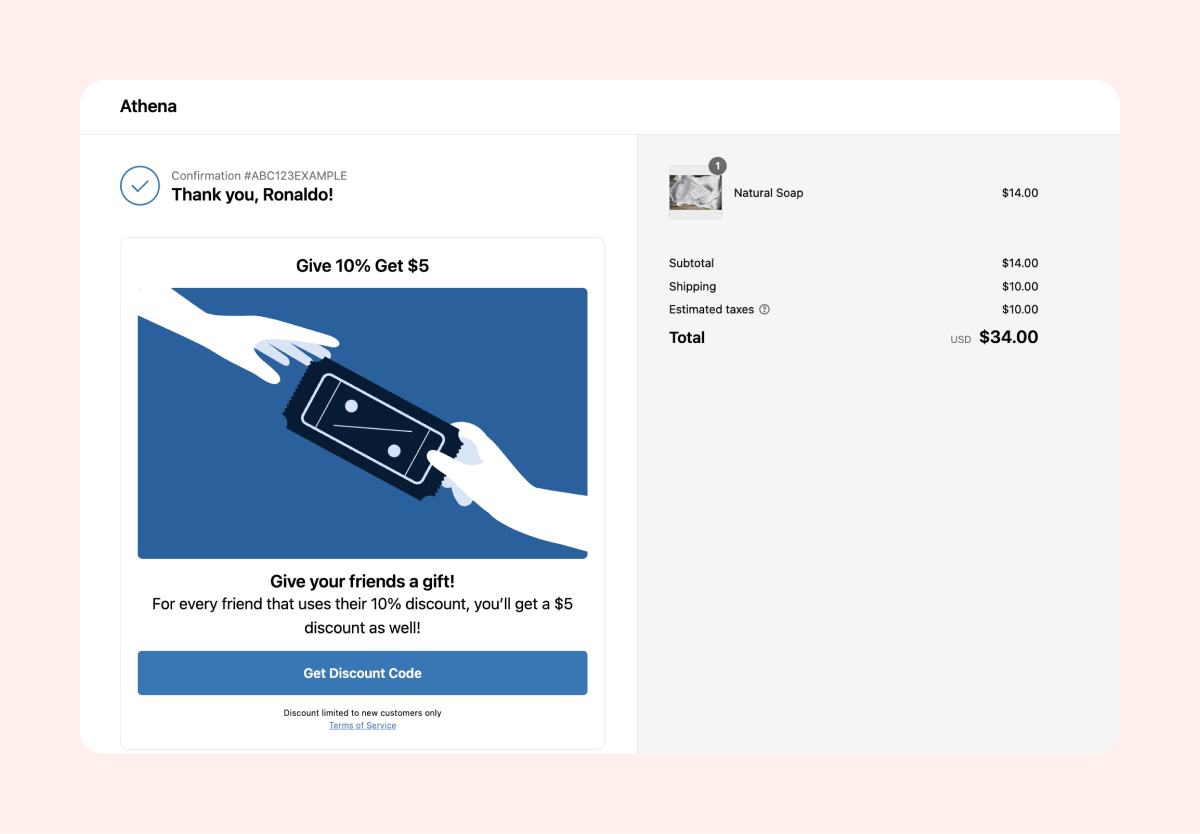
Activating the Post-Purchase Referrals Widget
To activate the Loox Post-Purchase Referrals Widget on your store, ensure you are using Shopify's new Thank you and Order status pages.
How to activate the widget
- Verify that you are using Shopify's new checkout configuration. Within your Shopify admin, under "Checkout," you'll find "Configurations".
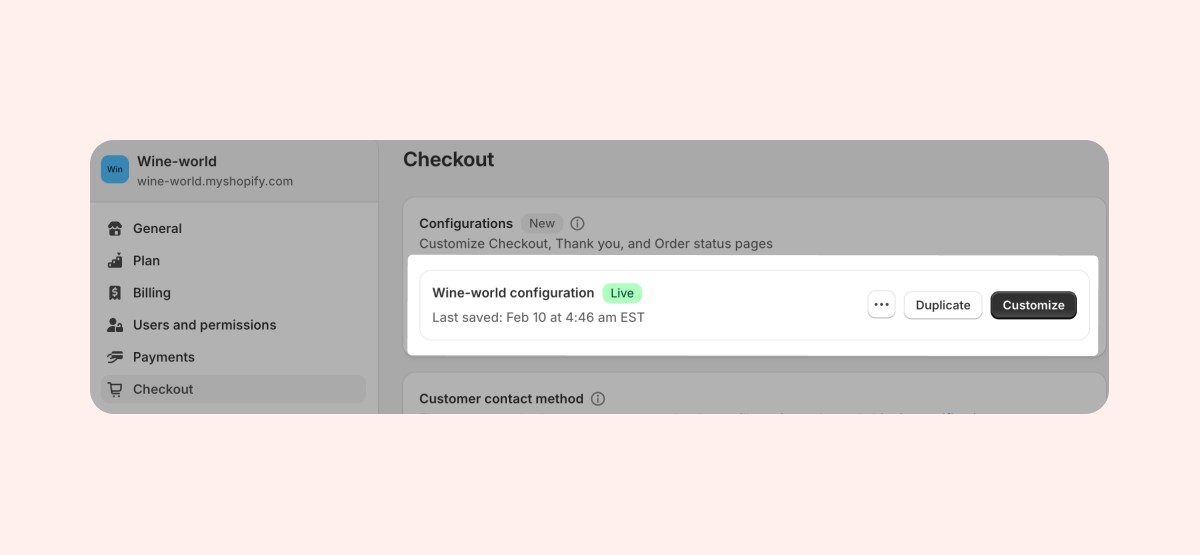
- Click “Customize.”
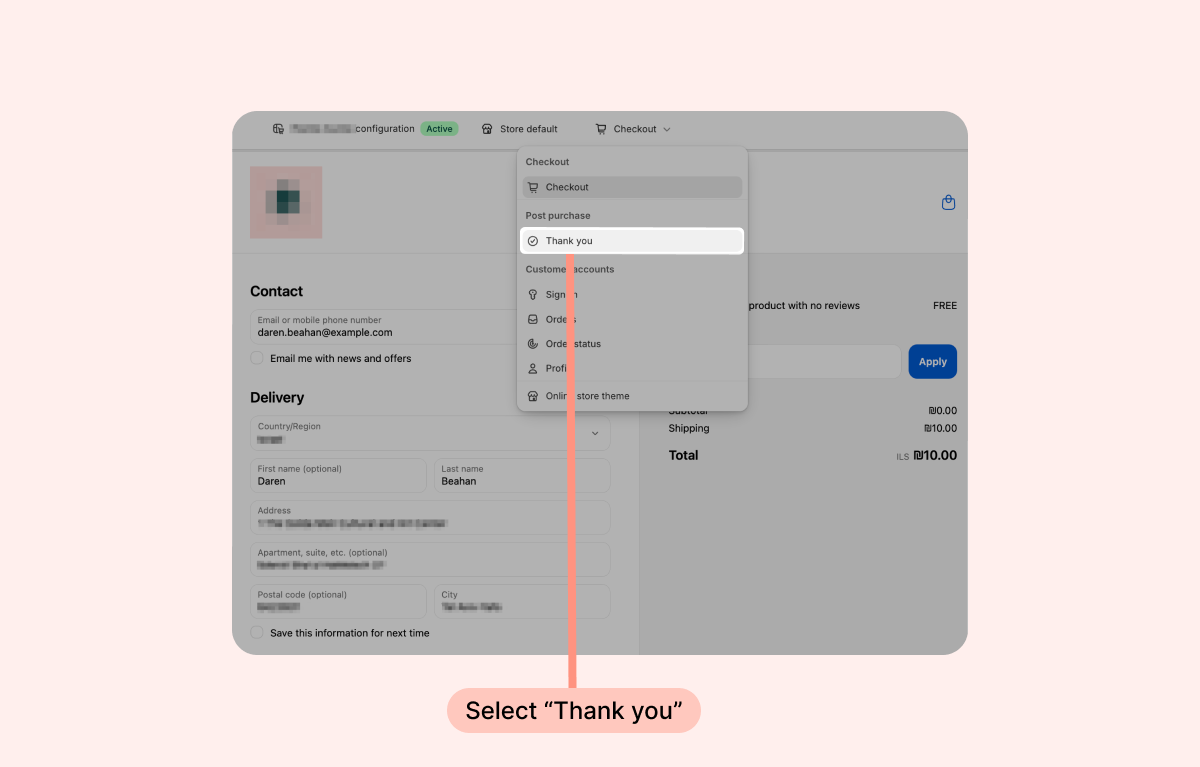
Open the page template selection dropdown, and select the page where you'd like to add the widget.
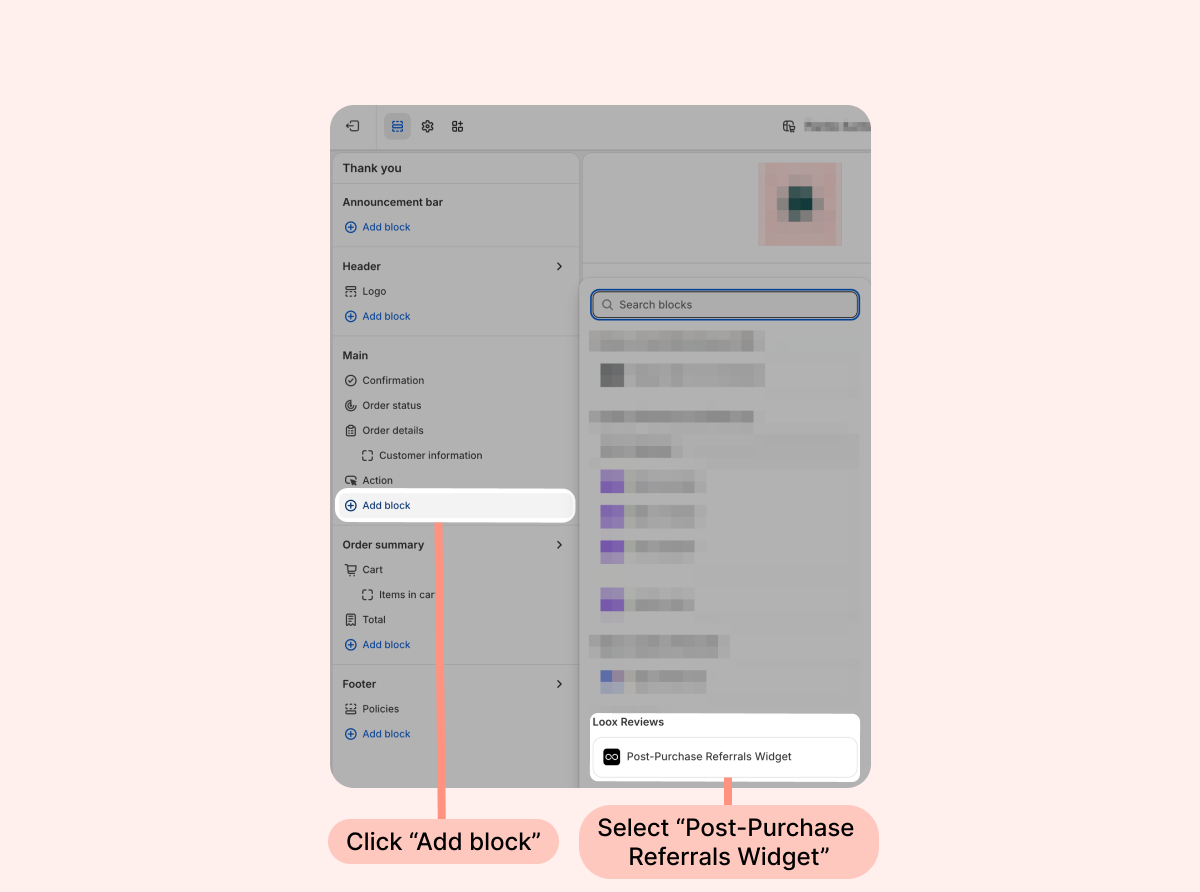
- Within "Sections", click "Add app block."
- Select the Loox Post-Purchase Referrals Widget:
- Click "Save."
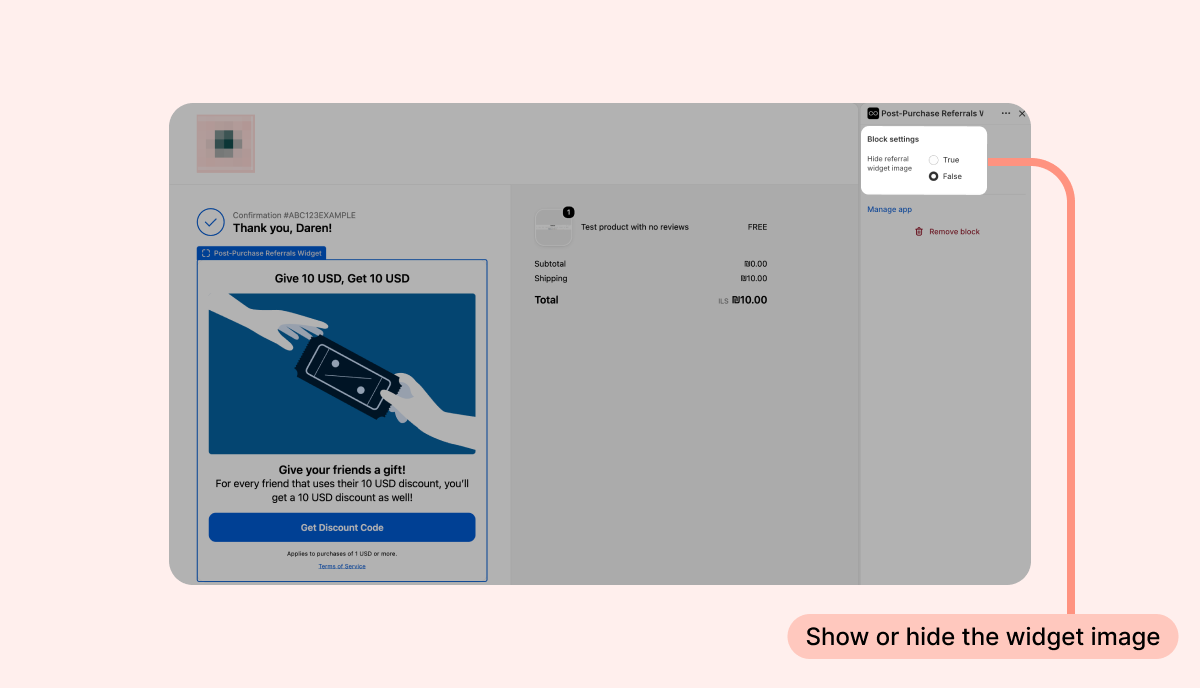
Within the widget's app block settings, you can choose whether or not to display the Referrals Widget image.
- To add the widget to the Order Status page: Open the page template selection dropdown again and select "Order Status." Repeat steps 2-7.
That's it! The Post Purchase Referrals Widget will now appear on your customers’ order confirmation page.
How to turn off the widget
To turn off the Post-Purchase Referrals and stop generating discount codes, you'll need to remove the app block from your Order Status and Thank you pages.
- Inside your Shopify Themes menu, click "Edit theme" to open the Theme Editor.
- Open the page template selection dropdown, and select "Checkout and new customer accounts."
- Open the page template selection dropdown, and select the page you want to remove the widget from: "Thank you" or “Order status.”
- On the left corner of the screen, click the "Post-Purchase Referrals Widget."
- Click "Remove app block."
Once the Post-Purchase Referrals Widget is removed from Shopify's checkout extensibility page, discount codes can no longer be created.
Customization options
- Primary color: Adjust the color of the widget.
- Friend discount title (Only on two-sided incentive): The first line of the widget shows the friend discount.
- Advocate reward title (Only on two-sided incentive): The second line of the widget shows the advocate reward.
- Subtitle: Appears in bold below the discount/reward title.
- Body: Text that appears below the subtitle to explain how the discount works.
- Button: The call-to-action on the share button. Use the [friend_discount] or [advocate_reward] placeholders to add the relevant discount amount.
Referral Emails
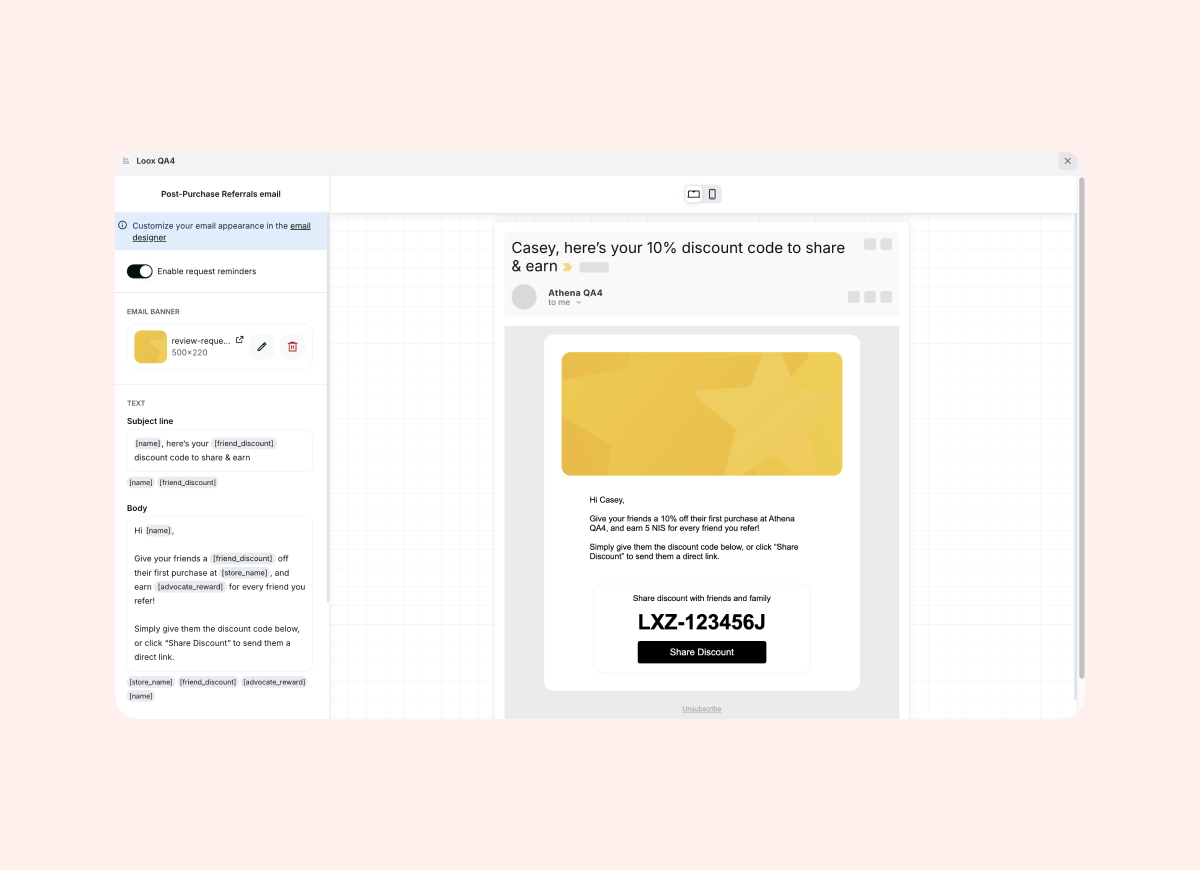
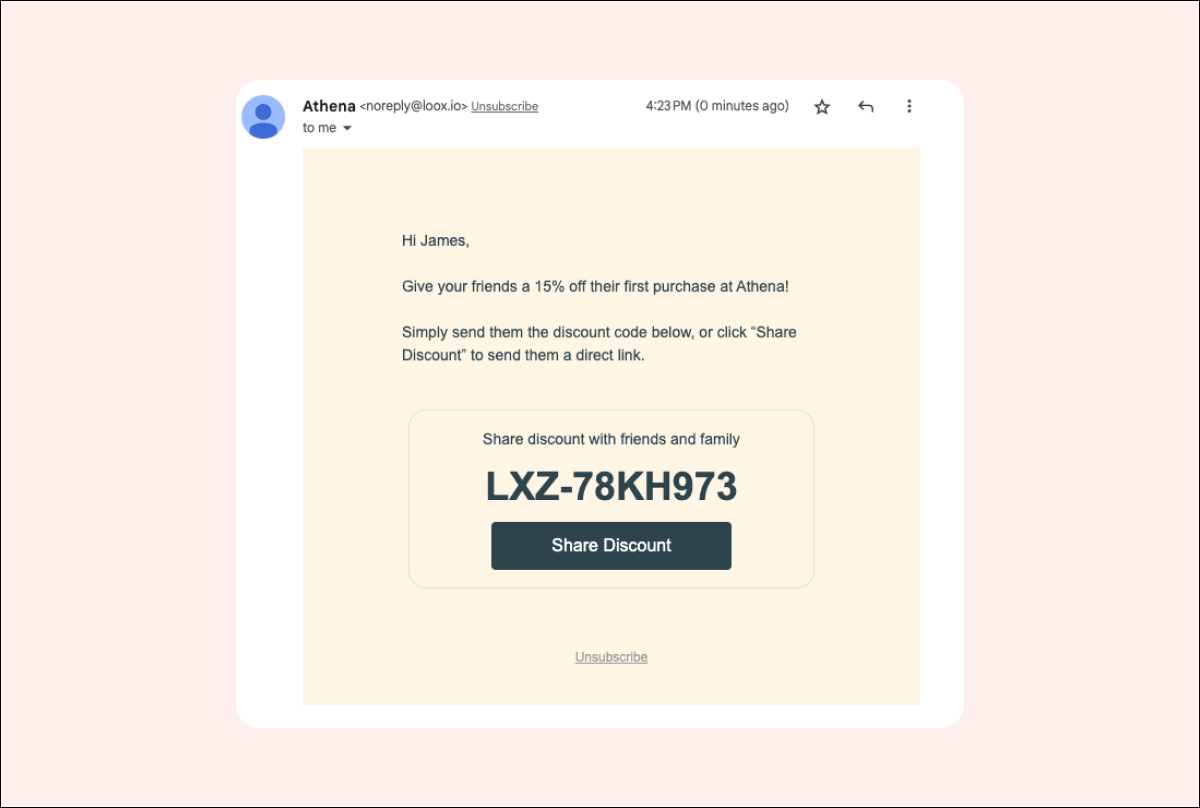
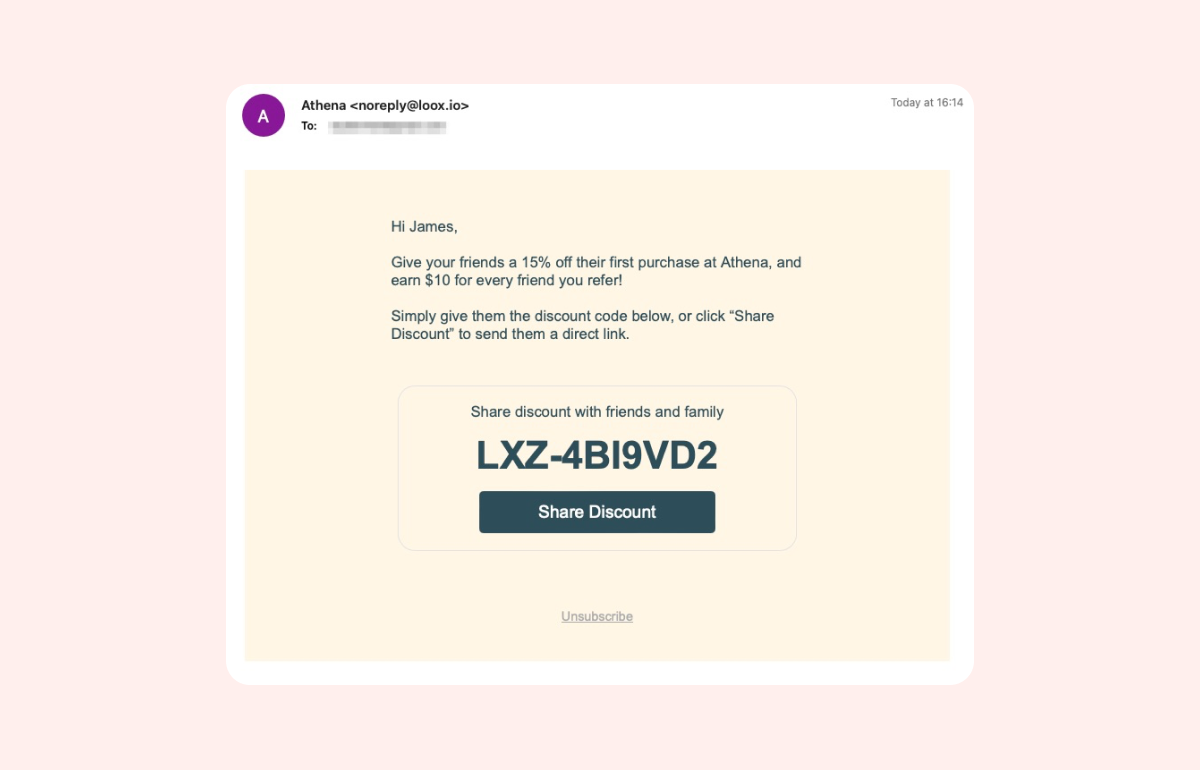
After clicking on the Post-Purchase Referrals Widget, customers will register as advocates of your brand and will receive a unique discount code. The code will also be sent via email with a link they can share with family and friends.
Your advocates can always recover their discount links or codes using this email.
The email content depends on the post-Purchase incentive you select in Loox Admin.
One-sided incentive:
Two-sided incentive:
The email texts and banner can be customized through the Post-Purchase Referrals Widget email settings page.