
Reward your customers with points for their reviews by integrating Loox with BON Loyalty.
Using our integration, you can offer points based on customers' ratings and reviews as an alternative to discounts, incentivizing your customers to leave honest and helpful reviews.
To use the Loox + BON Loyalty integration, you must be:
- Subscribed to the Loox Convert Plan and up. Click here to upgrade your plan.
- Subscribed to the BON Loyalty Basic plan and up.
Activating the Loox + BON Loyalty integration
To activate the Loox + BON Loyalty integration:
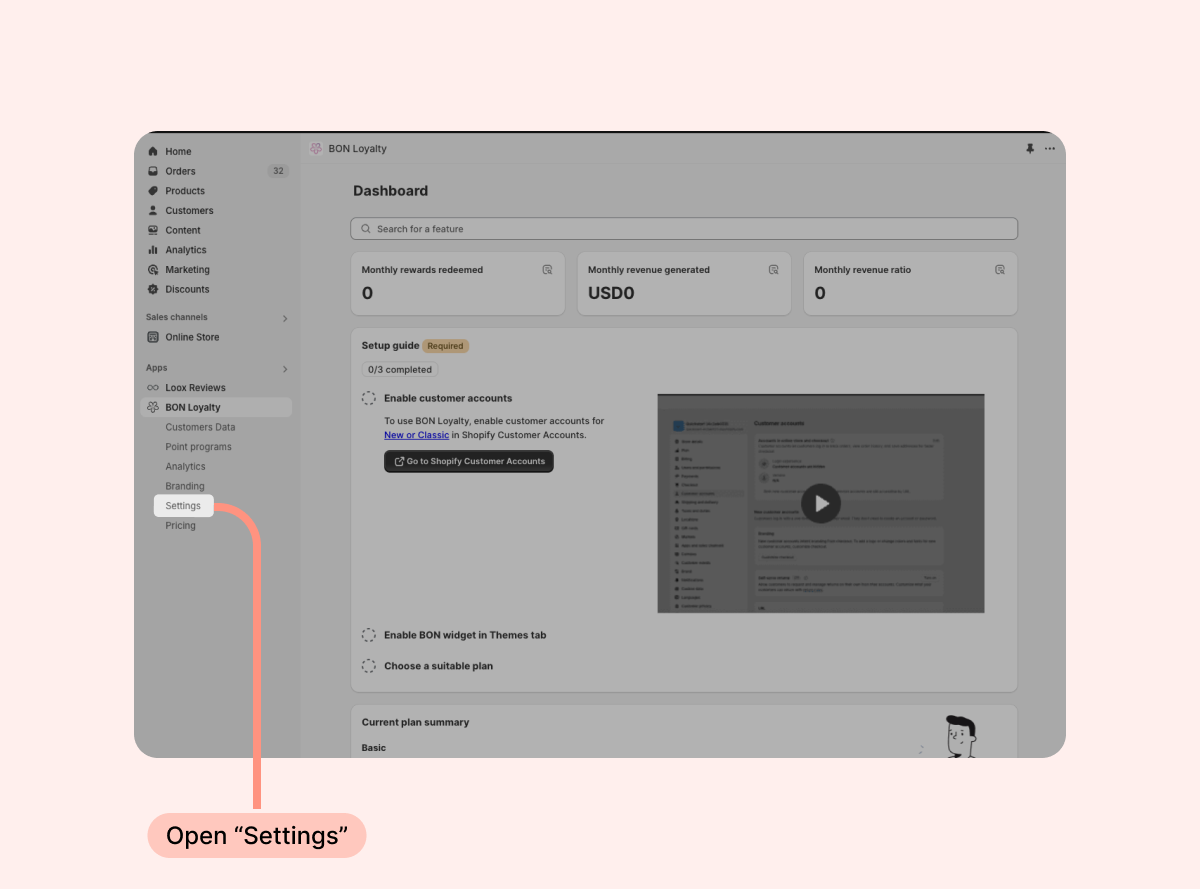
- Inside the Bon Loyalty app, open the "Settings" menu.
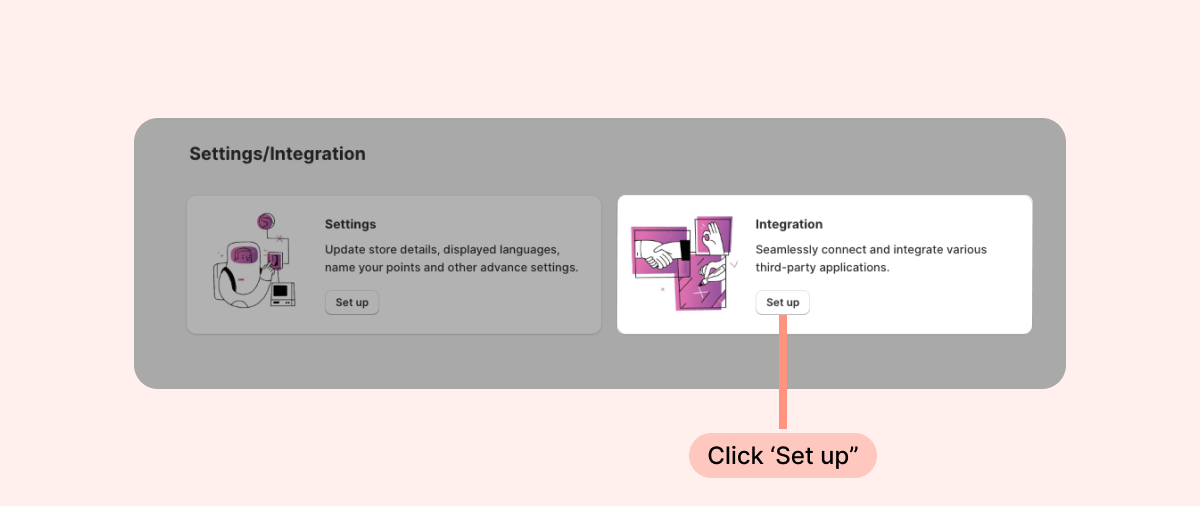
- Click "Set up" under "Integration".
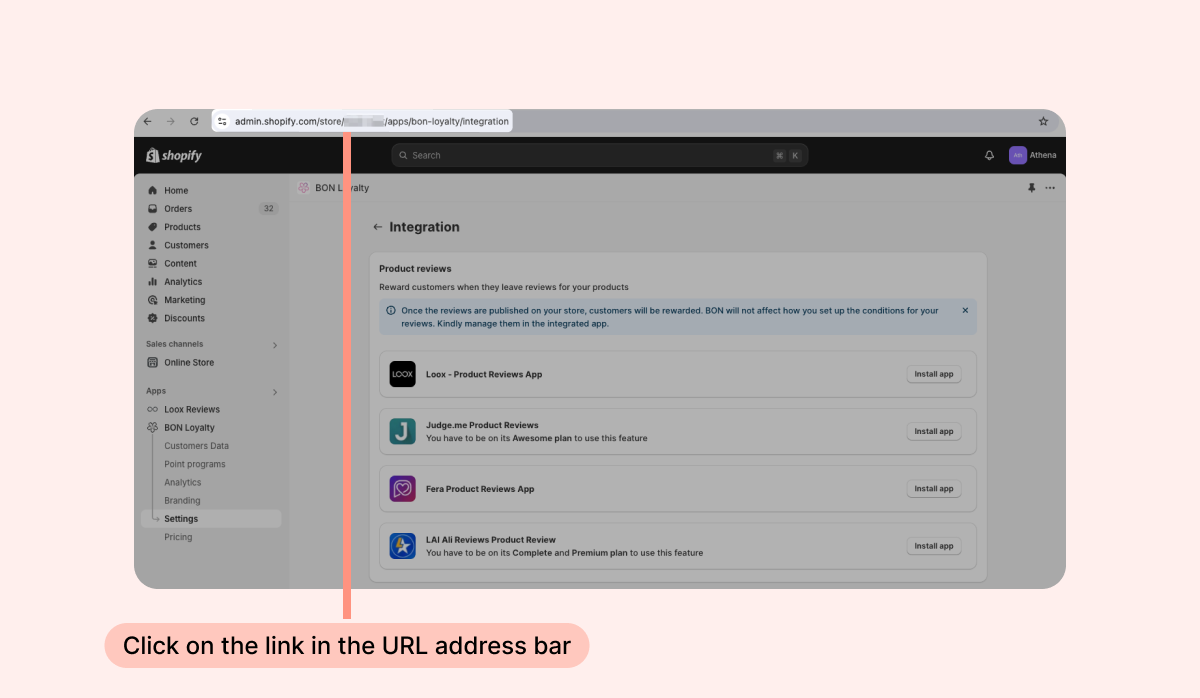
- Click on the link in your browser's URL address bar.
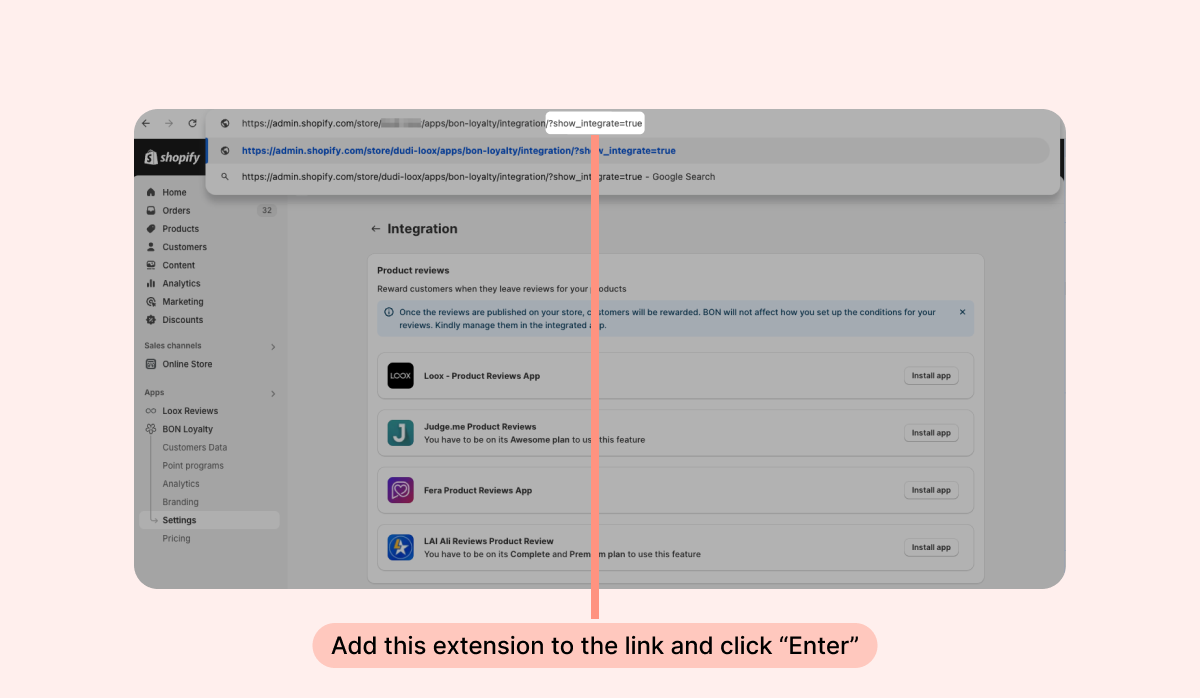
- Add
/?show_integrate=trueto the link and click "Enter" on your keyboard.
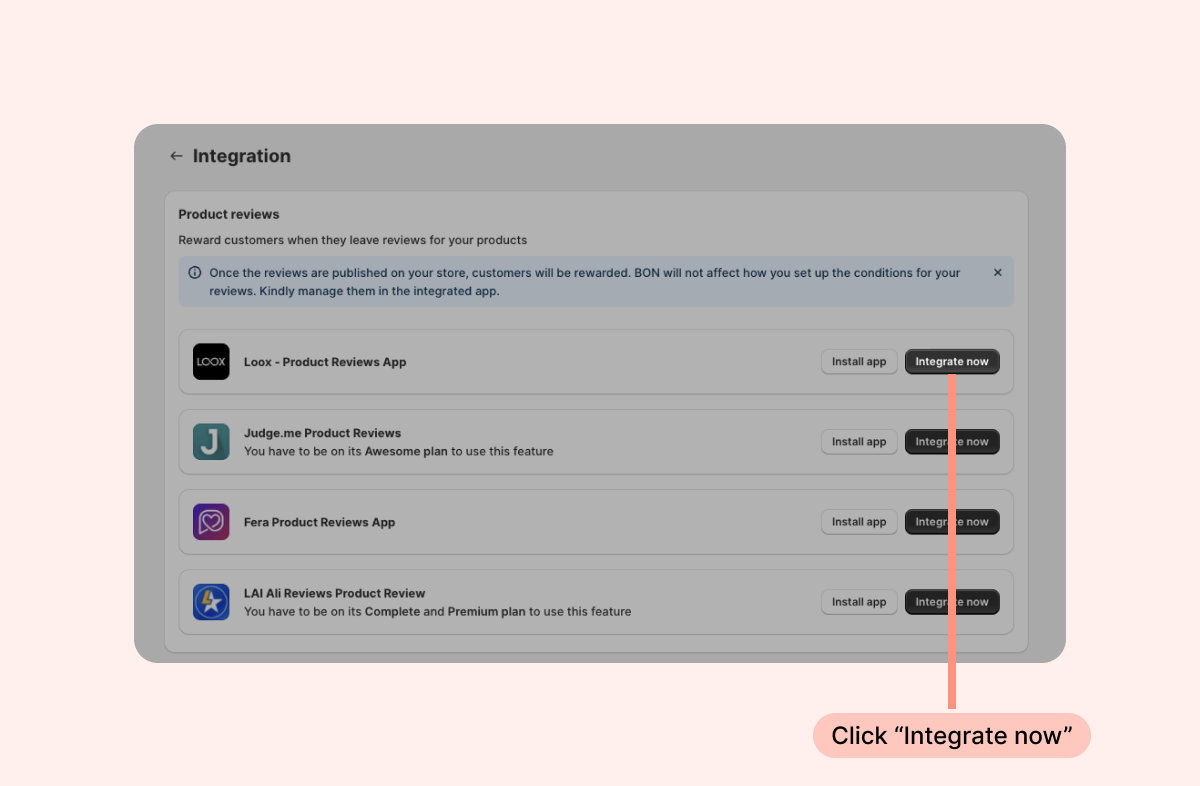
- Click "Integrate now" next to "Loox - Product Reviews App".
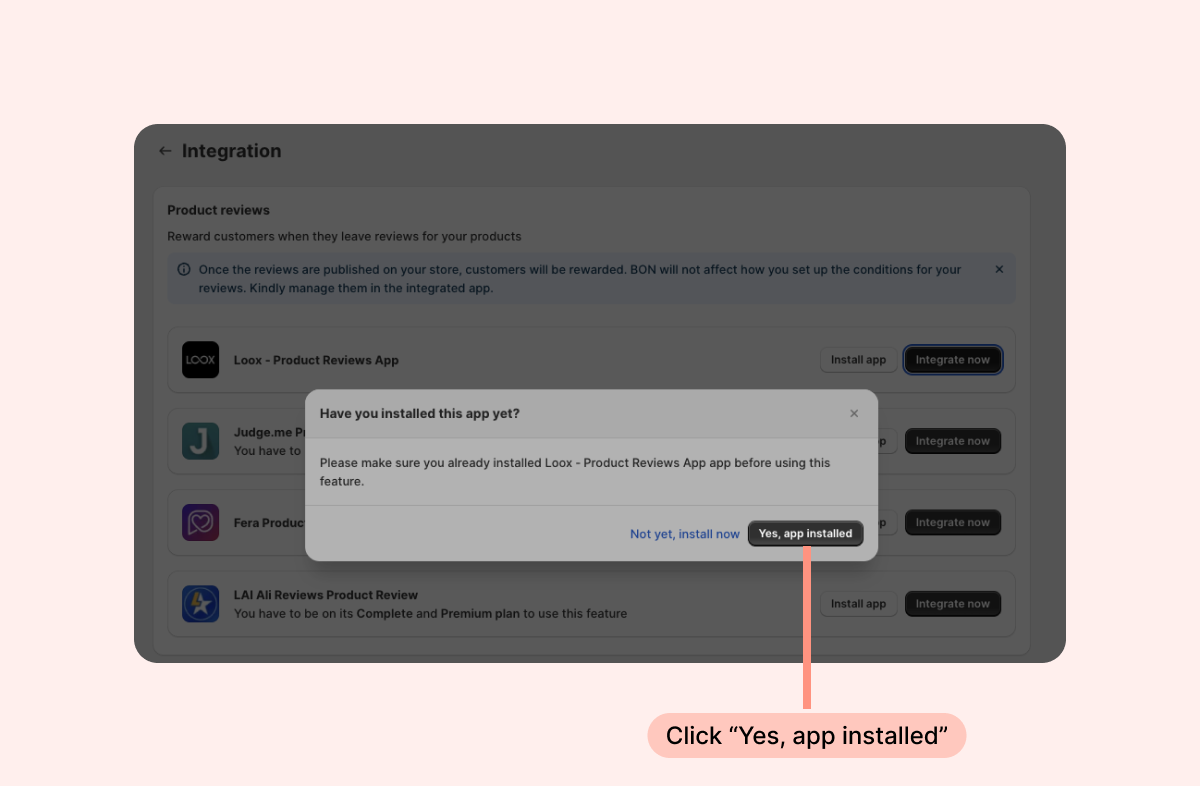
- Click "Yes, app installed".
- Inside the Loox App's "Settings - Integrations" menu, go to "BON Loyalty" and click "Manage".
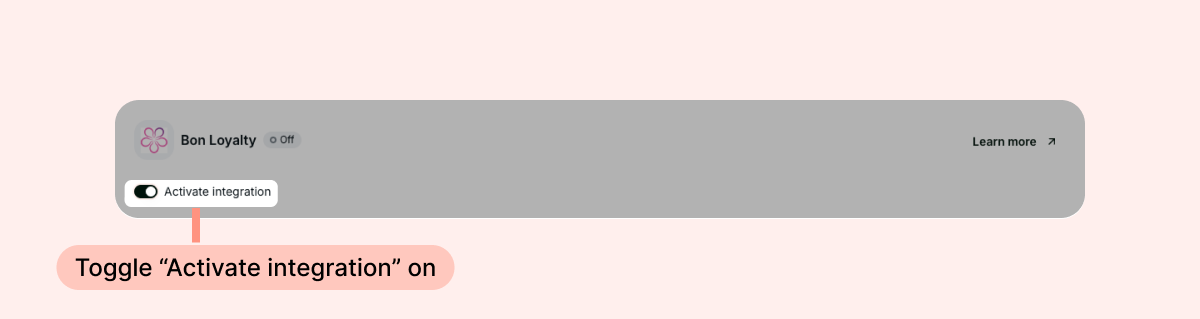
- Toggle "Activate integration" on.
Setting up a "Leave a review" reward program in BON Loyalty
To reward your customers with points for submitting a review using BON Loyalty:
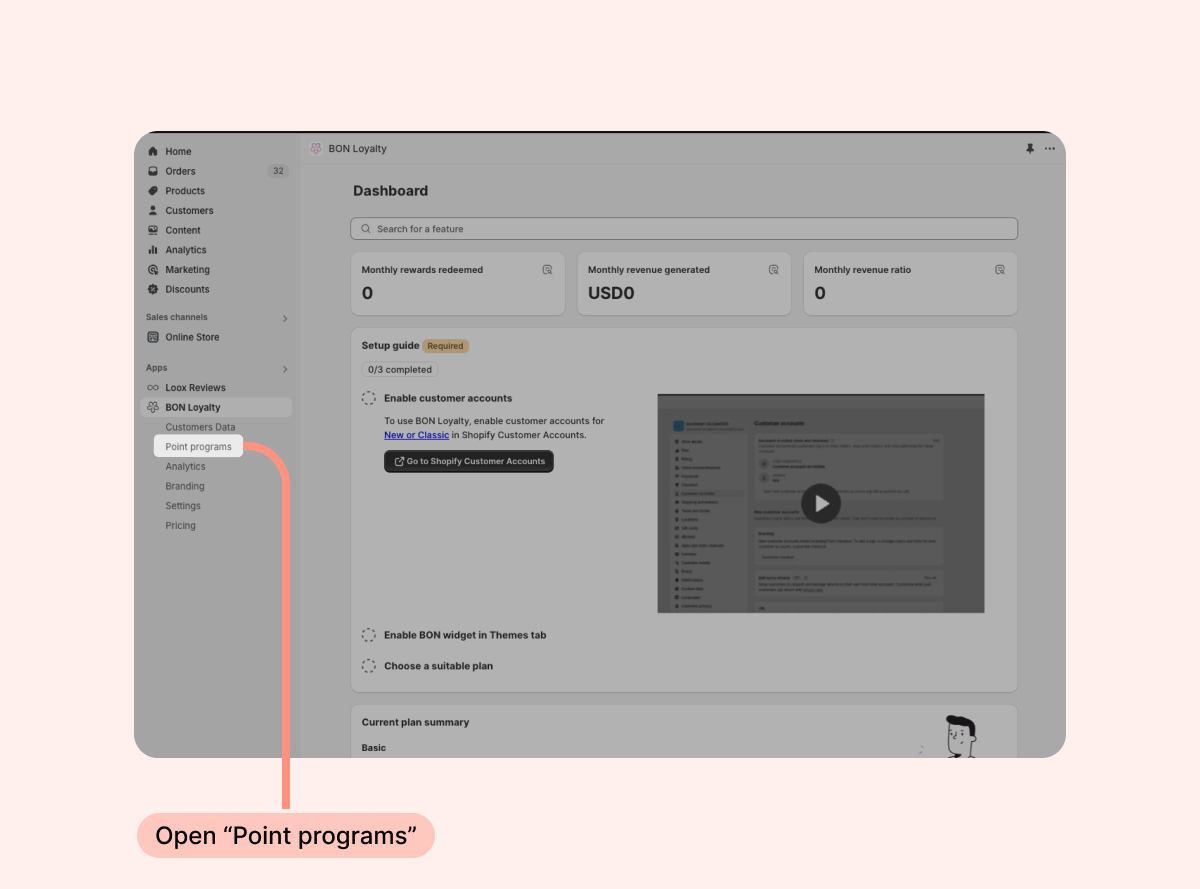
- Inside the BON Loyalty app, open the "Points programs" menu.
- Under "Earn points" click "Set up".
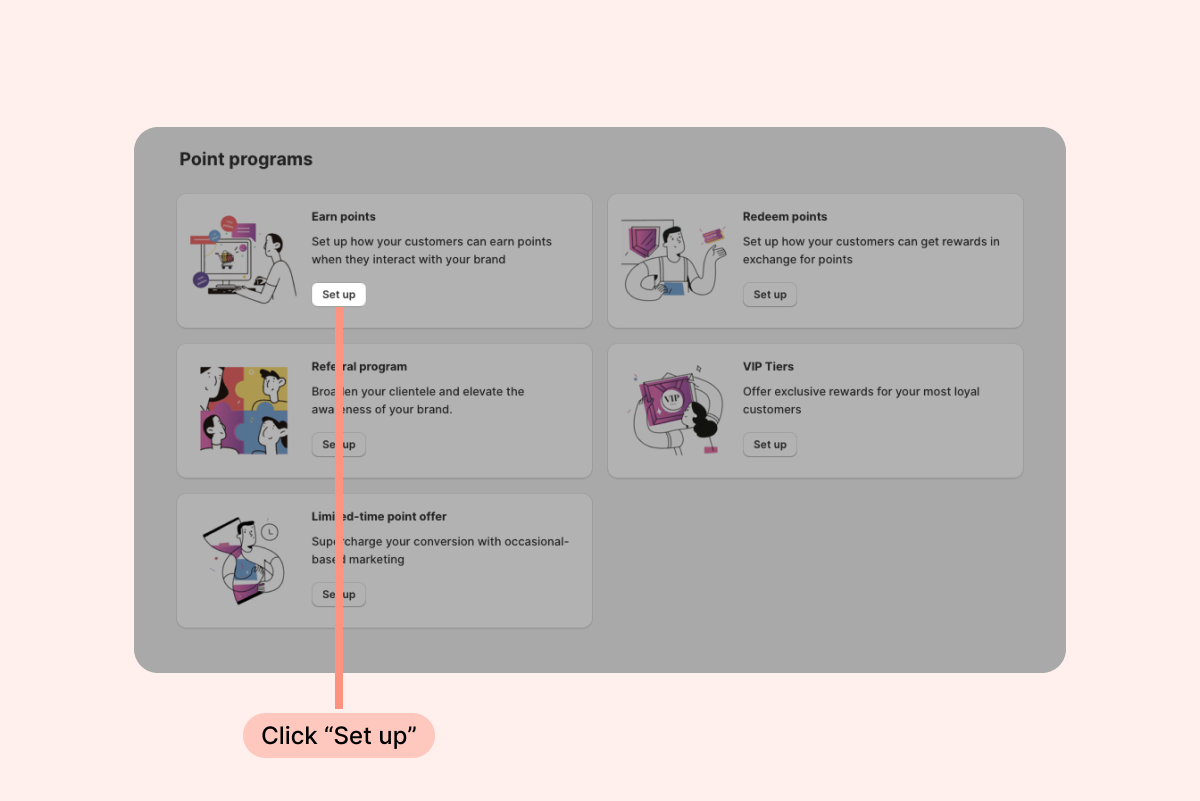
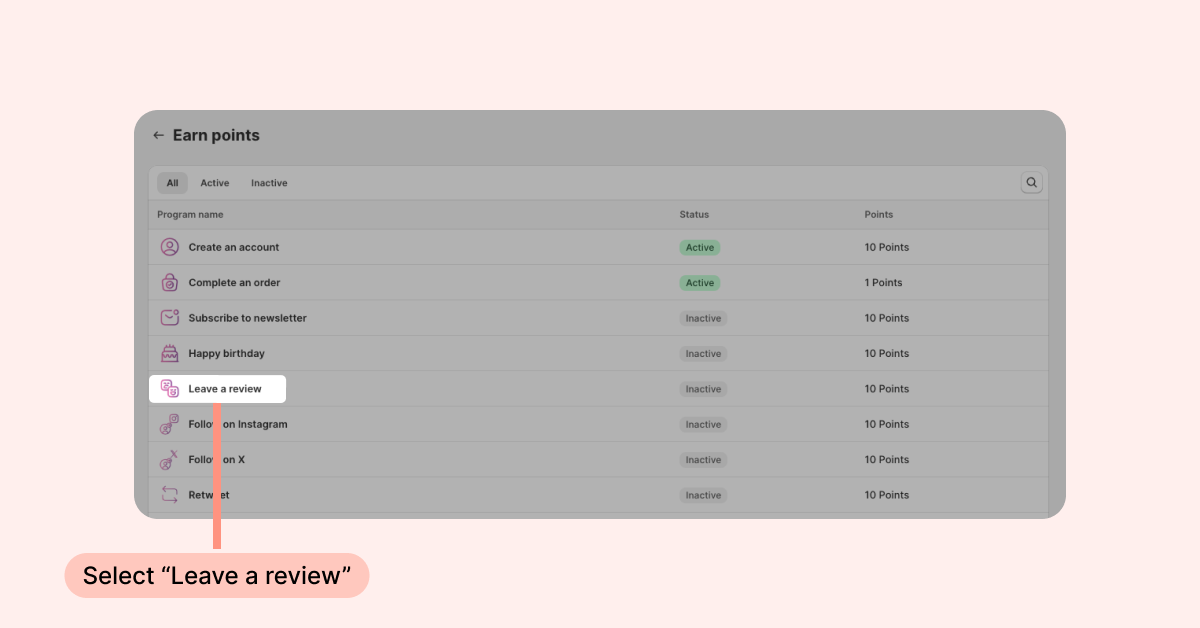
- Select "Leave a Review".
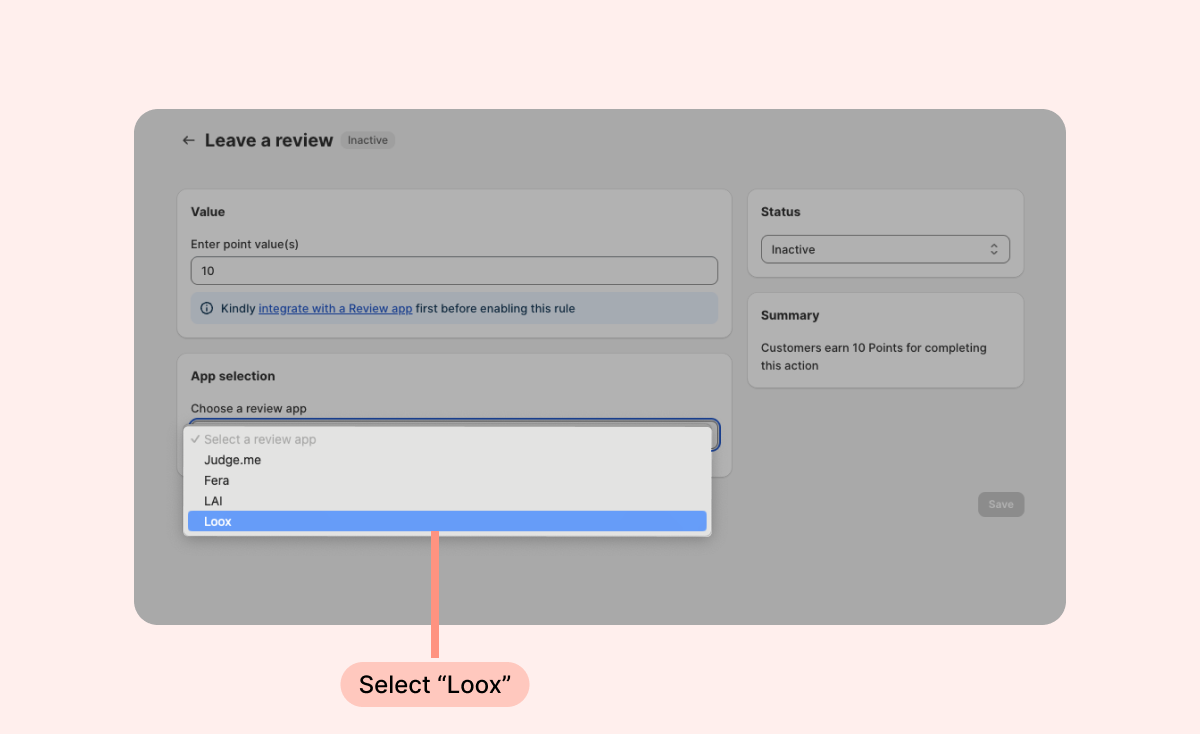
- Under "App selection", select "Loox".
- Enter your program's point value.
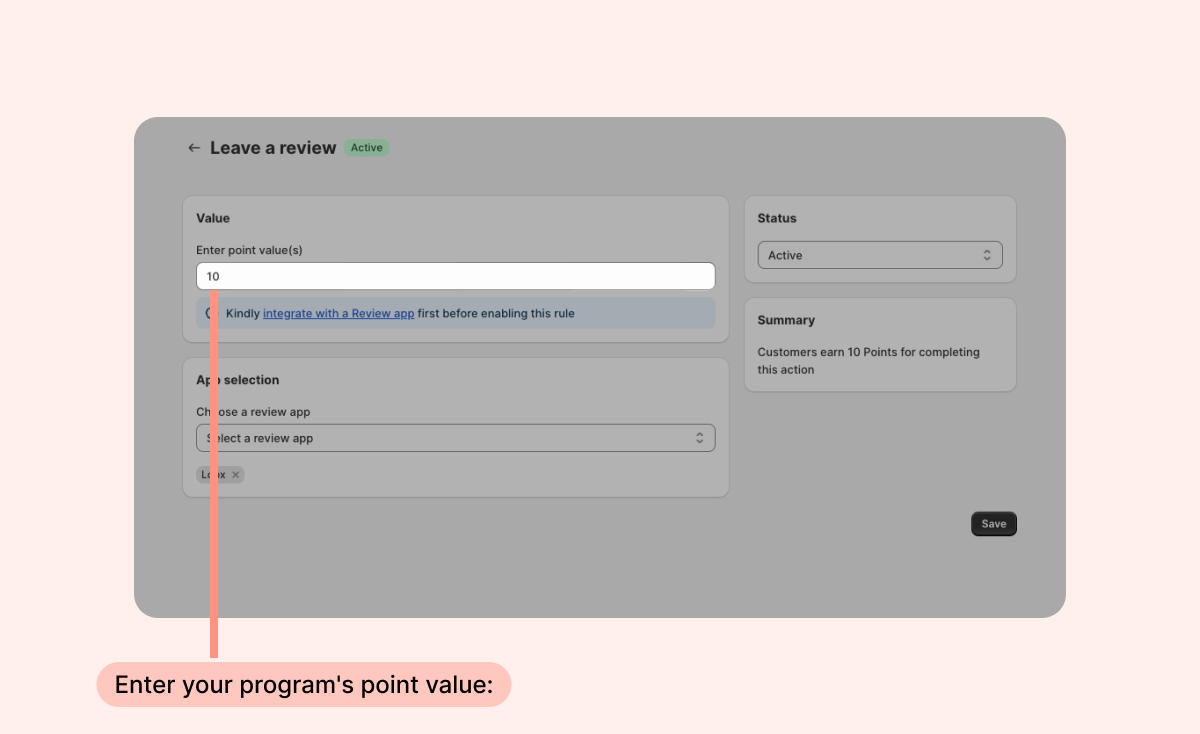
- Set your program's status to "Active" and click "Save".
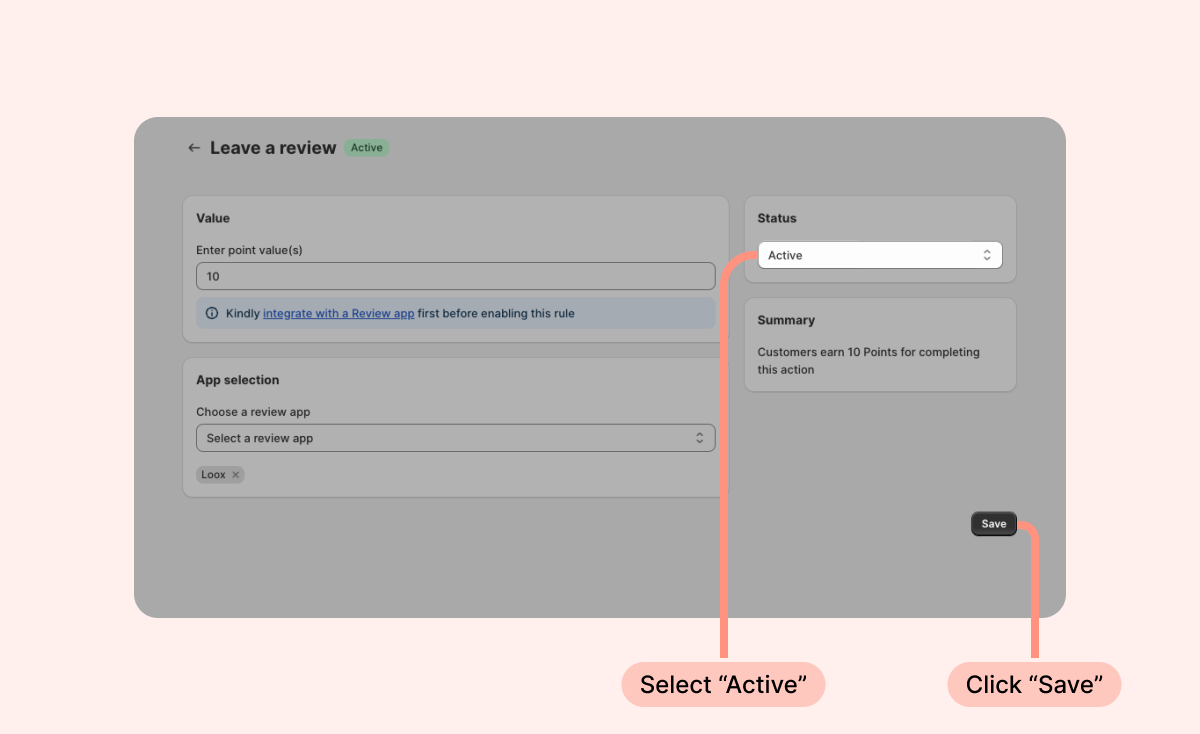
Your point program is now live.