
Welcome to the heart of your Loox admin! Loox makes it easy to keep track of all of your reviews in one place on the Manage Reviews page. Keep reading to learn how to publish new reviews, filter reviews by different crite, reply to customers, feature your best reviews, ask customers to update their reviews, and more.
Filtering reviews
Your Manage Reviews page can hold thousands of reviews. Filters help you narrow the list to the exact reviews you want to work with, whether you're moderating new submissions, finding reviews for a specific product, or pulling every review imported from a past platform. You can also combine filters with bulk actions to publish, unpublish, or update many reviews at once, or use filters to create a narrowed-down export file. You can act on the whole filtered list, or use the checkboxes at the top-left corner of every review to pick specific reviews from the filtered results.
How to filter reviews
- In Manage Reviews, open the filters at the top of the page.
- Choose one or more filters and set your criteria.
- Click Apply. The list updates to show only the reviews that match.
Available filters
You can filter your reviews by:
- Status: Published, unpublished, or pending reviews
- Rating: Reviews with a specific star rating
- Product: Reviews for a specific product, selected with the product picker
- Media: Photo, video, or text-only reviews
- Date: Reviews from a specific date or date range
- Featured: Reviews you've tagged as featured
- Widgets: Reviews added to your Carousel Widgets or Video Slider
- Verification: Verified or not verified reviews
- Source: Where the review came from - you can filter by:
- Loox: All Loox reviews, or reviews collected through the "Write a review" button, a review request email, a QR code, or a review link.
- Imported: All imported reviews, reviews imported in the last 7 days, AliExpress, other review apps, or a custom file.
Auto-publishing and manually publishing new reviews
Customers are more likely to trust stores that don't filter out negative reviews. Transparency shows that you aren't afraid to acknowledge real feedback, and negative reviews are the perfect opportunity to highlight great customer care. For more tips, check out: Why your Shopify store needs negative reviews and how to respond.
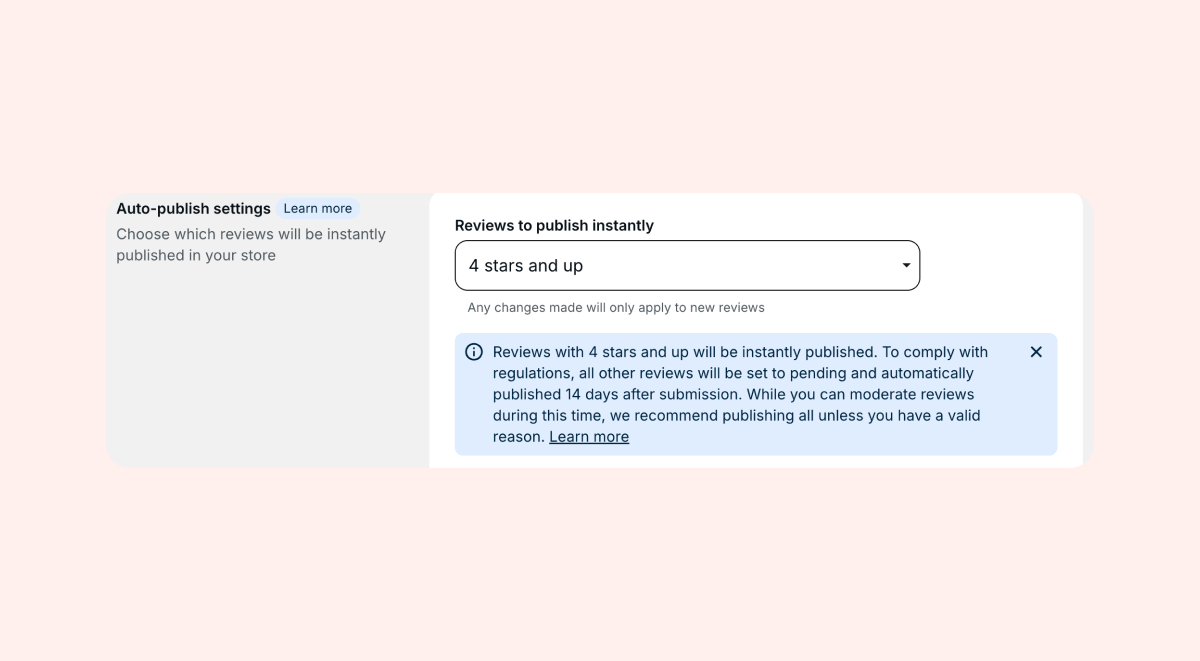
Auto-publishing reviews
It's required to auto-publish all reviews that are not rejected for valid reasons within 14 days. Valid reasons to unpublish a review include profanity, private personal data, defamation, spam, off-topic content, and other content-policy violations. Make sure to comply with your local laws and regulations regarding review moderation. You can set up rules in your admin to define which reviews get published immediately and which reviews get a 14-day moderation window before being published.
To customize your auto-publishing rules:
Within Collect Reviews > Preferences, go to Publishing reviews.
Select which reviews you would like to auto-publish from the dropdown:
All reviews: Every new review submitted will be published right away
3-5 Stars and up: 3-5 star reviews will be immediately published. 1-2 star reviews will be set to "Pending" and will be automatically published 14 days after submission unless unpublished for valid reasons.
4 stars and up: 4 and 5-star reviews will be immediately published. Reviews below 4 stars will be set to "Pending" and will be automatically published 14 days after submission unless unpublished for valid reasons.
5 stars only: 5-star reviews will be immediately published. Other reviews will be set to "Pending" and will be automatically published 14 days after submission unless unpublished for valid reasons.
Publish all reviews 14 days after submission: No reviews will be published immediately, so you'll have a 14-day window to moderate all submitted reviews.
You can search for "Pending" reviews using the "Status" filter on your Manage Reviews page. Each pending review will display its scheduled publication date.
Unpublishing reviews
When you unpublish a review, you'll need to choose the unpublish reason from a fixed list of categories. This keeps your store's moderation aligned with Google's review requirements.
To unpublish a review:
- In Manage Reviews, find the review you'd like to unpublish.
- Click the review's "Published" status.
- Select Unpublish and choose the reason that best fits and confirm.
The reasons you can choose from:
| Reason | What it covers |
| Harmful software | The review contains or promotes malicious software |
| Offensive content | The review contains offensive or hateful language |
| Personal information | The review includes private or personally identifiable information |
| Adult content | The review contains explicit or adult material |
| Rights violation | The review infringes on copyright, trademark, or other rights |
| Spam or promotion | The review is promotional, duplicated, or spam |
| Off-topic | The review is unrelated to the product or shopping experience |
| Gibberish | The review contains incoherent or meaningless text |
| Conflict of interest | The review comes from someone with a personal or business interest in the outcome, like an employee or competitor |
| Inappropriate or harassment | The review contains harassing, threatening, or otherwise inappropriate content |
| Legal reasons | The review contains content that you can't display for legal reasons |
| Duplicate content | The review is a duplicate of another review that's already being displayed in your store |
Once unpublished, the review won't appear on your widgets or count towards your average product rating.
Manually publishing reviews
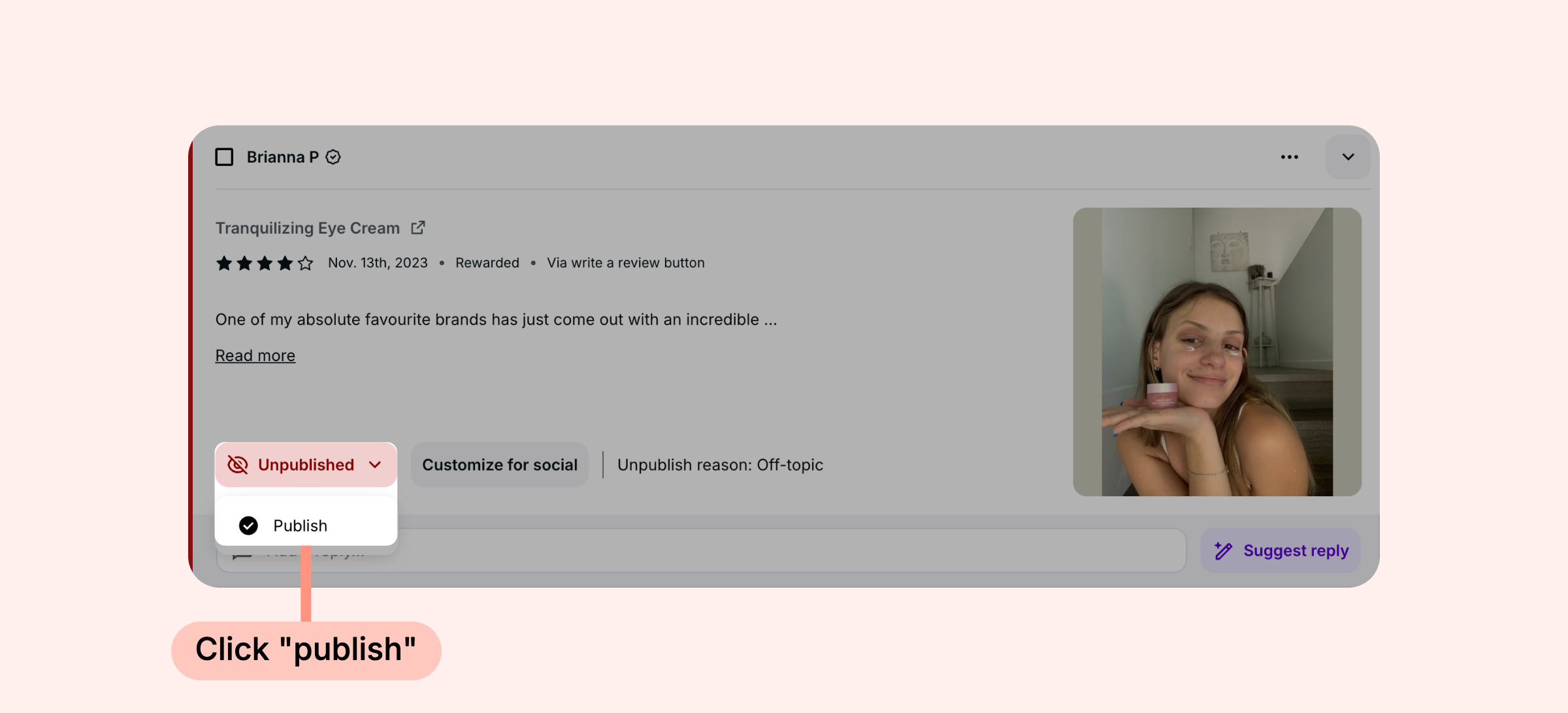
To manually publish a review:
In Manage Reviews, search for the review you would like to publish.
Open the dropdown on the bottom left and click Publish.
Publishing and unpublishing reviews in bulk
When you have a batch of reviews to moderate, you don't have to work through them one at a time. On the Manage Reviews page you can pick out specific reviews, or select every review that matches your active filters, and then publish or unpublish the whole selection in one step. This works for both product reviews and store reviews.
To publish or unpublish specific reviews:
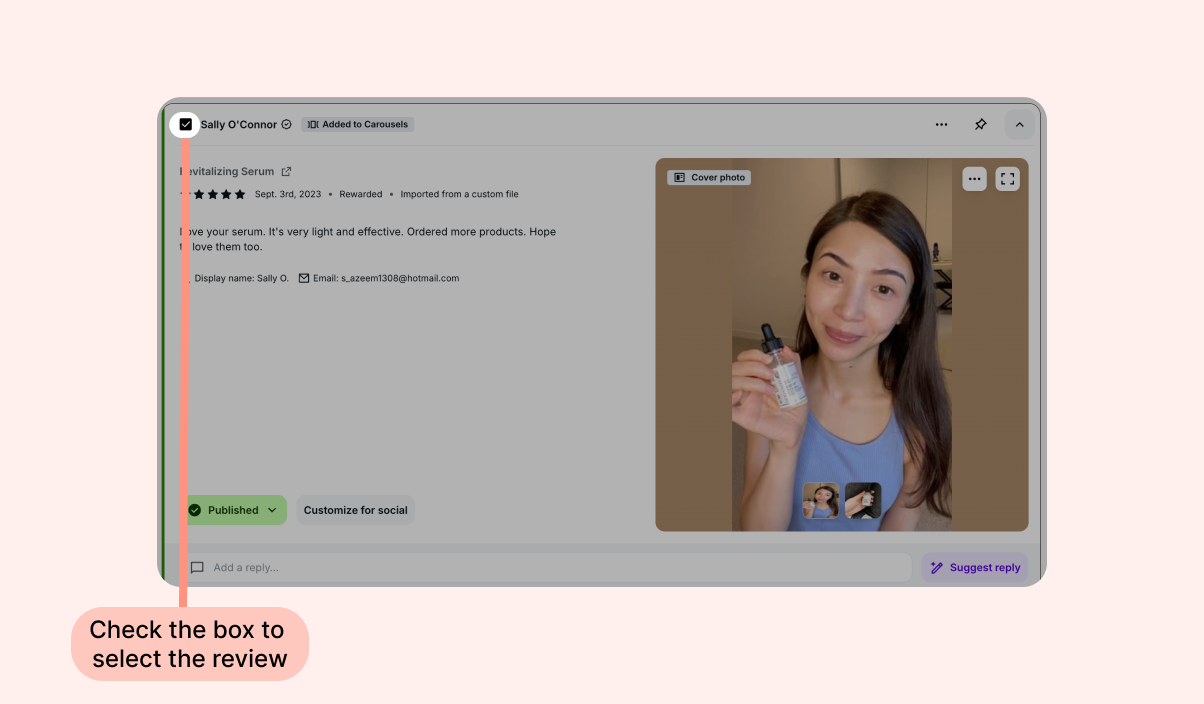
On the Manage Reviews page, click the checkbox at the top-left of each review you want to include. Clicking the review's header row selects it too, so you can move quickly down the list. Every selected review is marked with an outline.
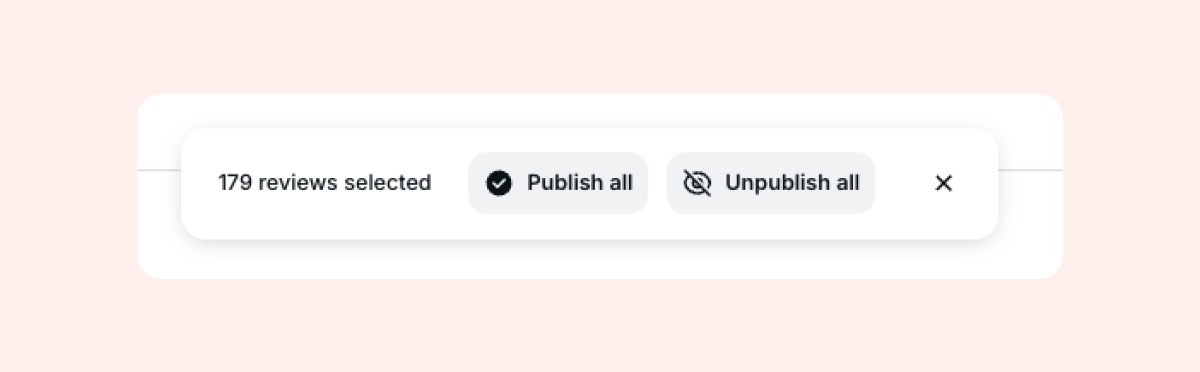
In the action bar that will appear at the bottom of the page, click Publish all or Unpublish all.
Confirm the action. When you unpublish, you'll choose one reason that applies to all of the reviews in your selection.
Once the action runs, the status on each selected review updates to reflect the change.
To publish or unpublish every review that matches your filters:
On the Manage Reviews page, set up your filters and click Apply.
Click Select all X reviews at the top of the list. This selects every matching review across all pages, not only the ones currently on screen.
In the action bar that will appear at the bottom of the page, click Publish all or Unpublish all, then confirm.
You can also start from Select all and then uncheck the few reviews you want to leave out. The action then applies only to the reviews that are still selected. To clear a selection completely, click the Select all control again.
Good to know:
The count at the top of the page always shows how many reviews are selected in total, and your selection stays in place as you move between pages
Running a new search or changing your filters starts you with a clean selection
Publish all is available when at least one selected review is not yet published, and Unpublish all is available when at least one selected review is published or pending
Bulk actions skip any review that already has the status you're applying
Reviews scheduled to publish behave like any other review, so you can publish them right away or unpublish them
Reviews collected through the Shop app aren't available for bulk selection
Review notifications
Loox automatically notifies you when new reviews are submitted and when existing reviews are edited by the customer. By default, notification emails go to the email address associated with your Shopify account. You can update your primary notification address and add up to 5 additional addresses to keep your whole team in the loop. Read more.
Replying to reviews
Engage with your customers by replying to their reviews, thanking them for sharing their experiences, and solving any issues or concerns they might have.
To reply publicly to reviews:
In Manage Reviews, find the review you would like to reply to.
Type your response in the "Add a reply..." box that appears immediately below the review.
Your replies will appear publicly on the Reviews Widget. The customer will be notified by email when you reply to their review.
Tip: On the Convert Plan and up, you can use AI review replies to quickly write thoughtful, personalized responses to your customers' feedback.
Asking customers to update their review
Customers can edit their review if they've changed their mind or you've resolved an issue for them. Send an invitation to update their review by clicking on the three dots (...) at the top of the review and selecting Ask customer to edit. Learn more.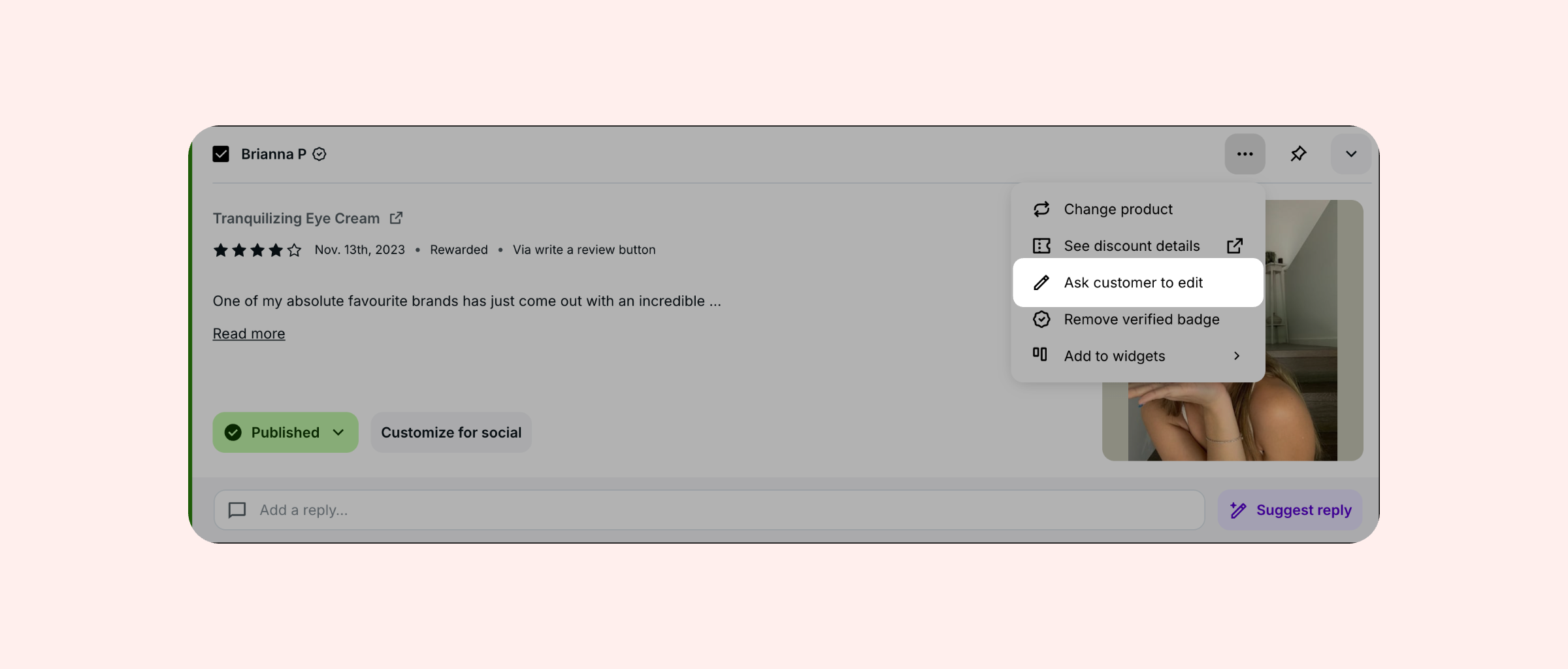
Managing review media (photos & videos)
Leverage customer photos and videos for your business's marketing needs.
Download a photo or video
In Manage Reviews, locate the review.
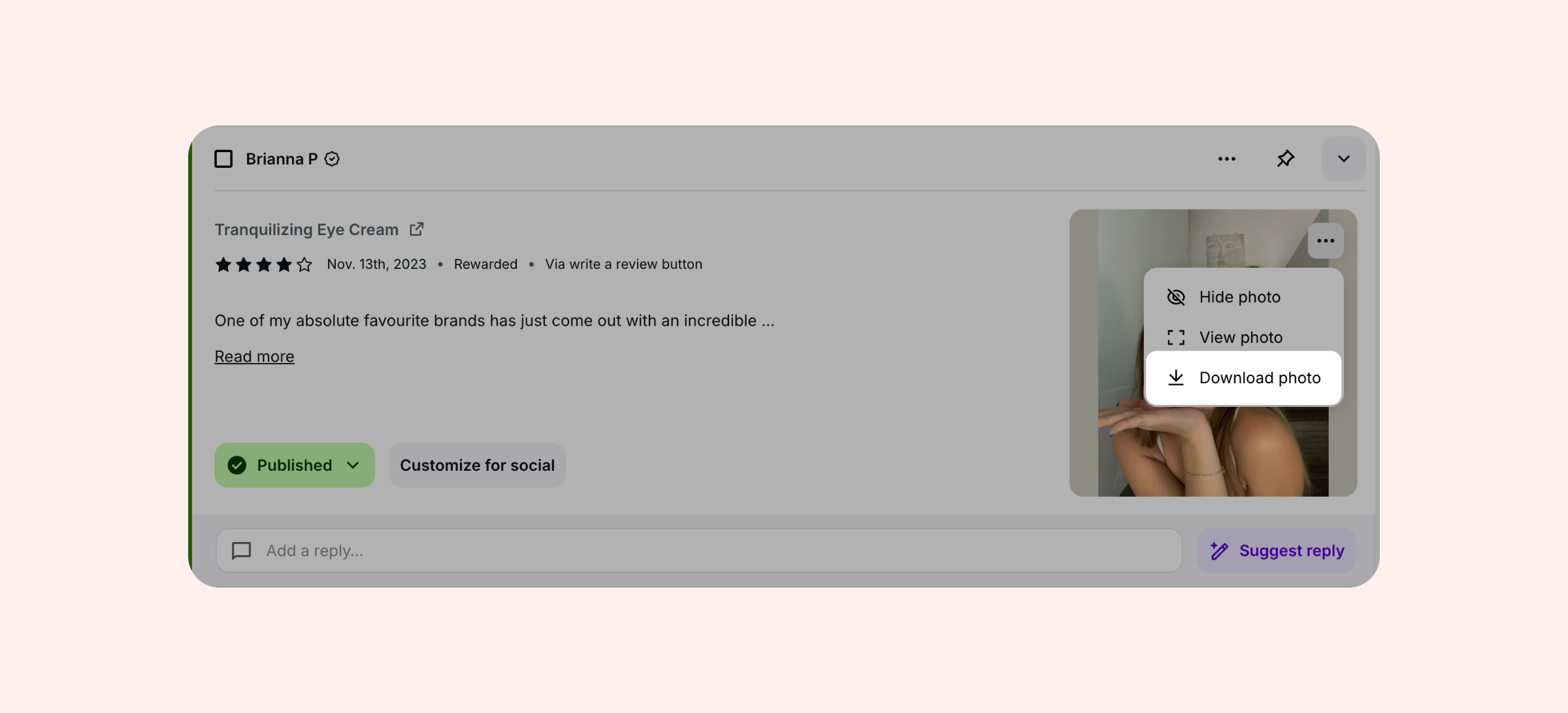
Hover over the photo, click the three dots (...), and select Download Photo.
Change the cover photo of a review with multiple photos
When there's a review with multiple photos, the "cover photo" is displayed across your Loox widgets. To make sure each review makes the best first impression, we use AI to automatically select the highest-quality photo as the cover.
How it works
When a multi-photo review is published (or when photos are added/removed by the customer) our AI mechanism evaluates each photo using quality criteria like:
Relevance
Sharpness and lighting
Product visibility
Face visibility
Natural colors
Clean background
Presence of watermarks
The highest-scoring photo is then set as the cover automatically. If you've manually set a cover photo, that will override the AI selection.
To manually change the cover photo:
In Manage Reviews, locate the review and expand it:
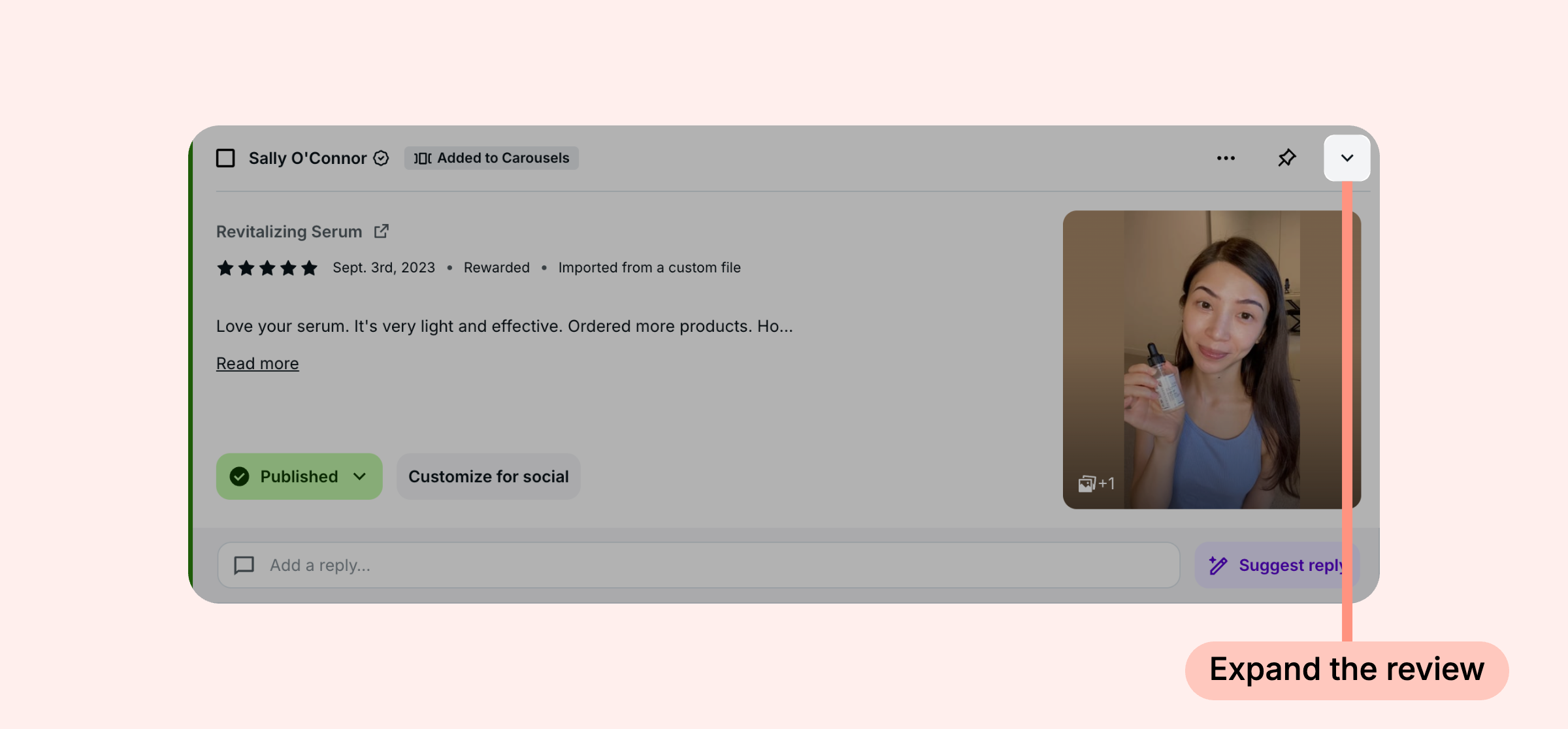
Select your preferred image using the arrows.
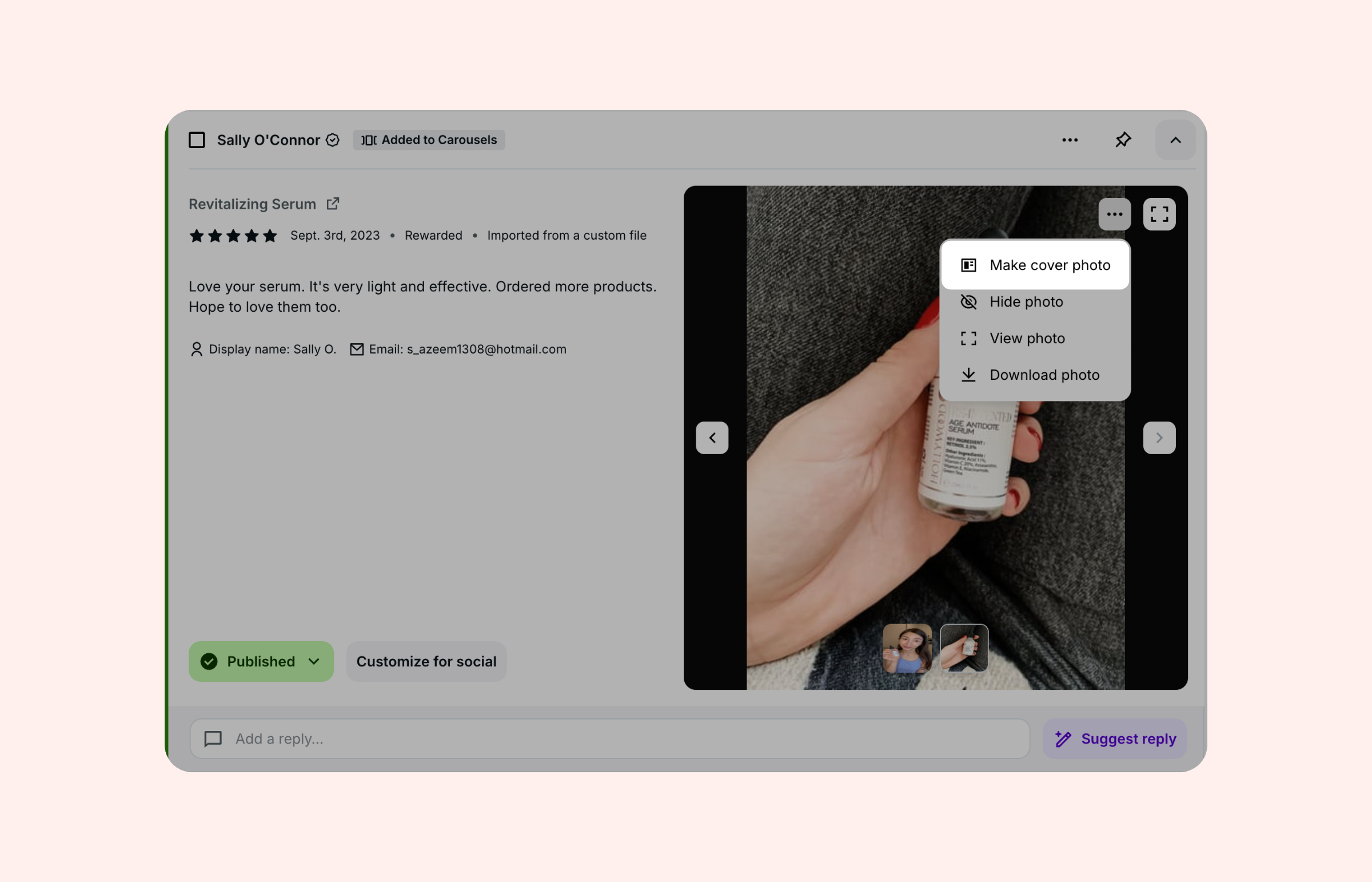
Click on the three dots (...) at the top right corner of the image and select Make Cover Photo.
Hide a photo/video
In Manage Reviews, locate the review.
Hover over the photo, click the three dots (...) in the top right corner, and select Hide Photo.
Feature a review
Tag specific reviews to pin to the top of your Reviews Widget. Featured reviews will also appear first on the Snippets Widget and on aggregated widgets that display reviews for all of your products, such as the Floating Reviews Widget, your Happy Customers page, your home page, and the Cart Reviews Widget.
To feature a review:
In Manage Reviews, locate the review you would like to feature.
Click on the Tag as featured pin in the top right corner.
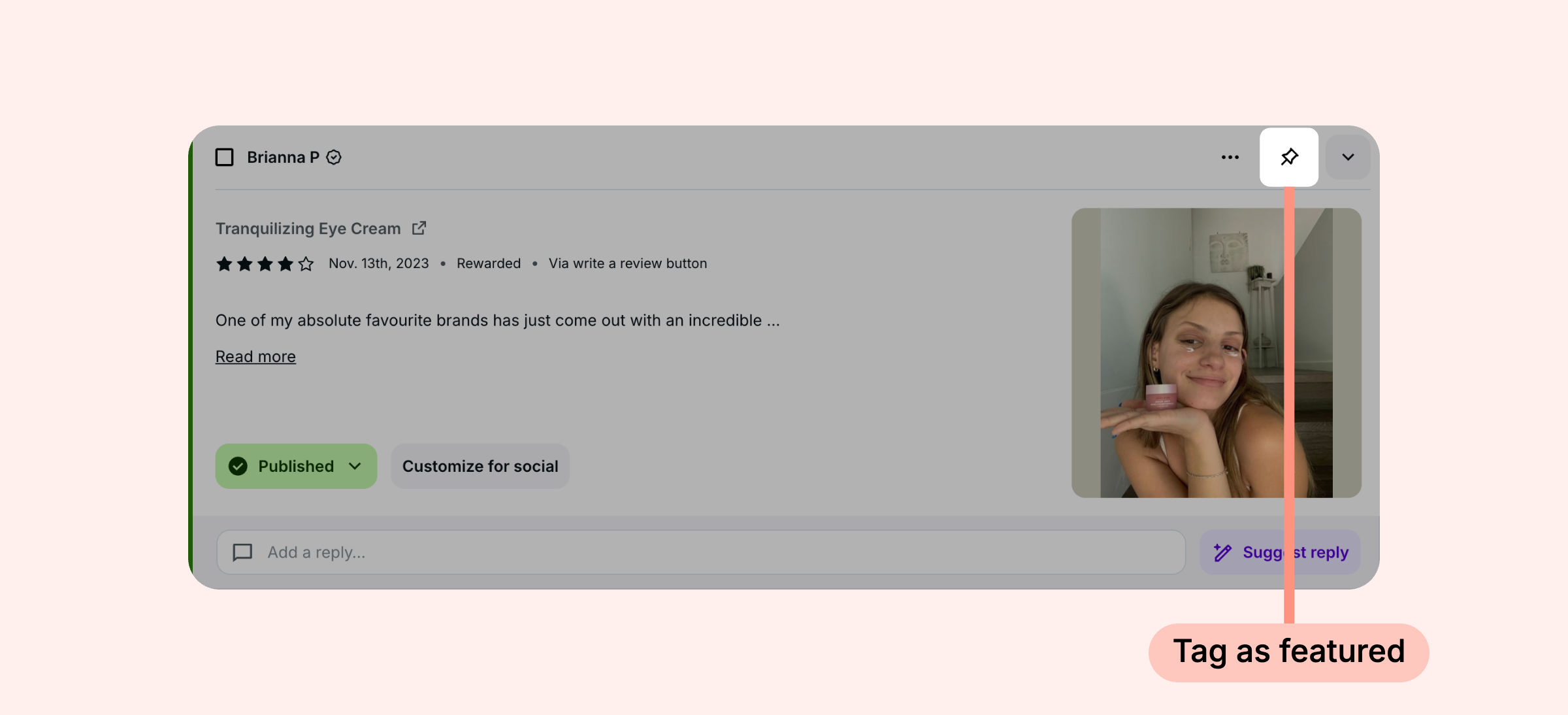
Once tagged as featured, the pin icon will turn black, and the review will appear at the top of your Reviews Widgets and Snippets Widget.
Notes:
Featured reviews will appear on the Reviews Widget in the order they were tagged.
Featured reviews will only appear first when your Reviews Widget's sorting type is set to "Featured" or "Smart review sorting".
You can feature up to 10 reviews for each of your store's products.
To display featured reviews on widgets that show reviews from all of your products, turn on Always show featured reviews in your Reviews Widget's settings.
To remove a featured tag, click the pin icon again.
Additional actions
There are more actions you can take to manage your reviews, including:
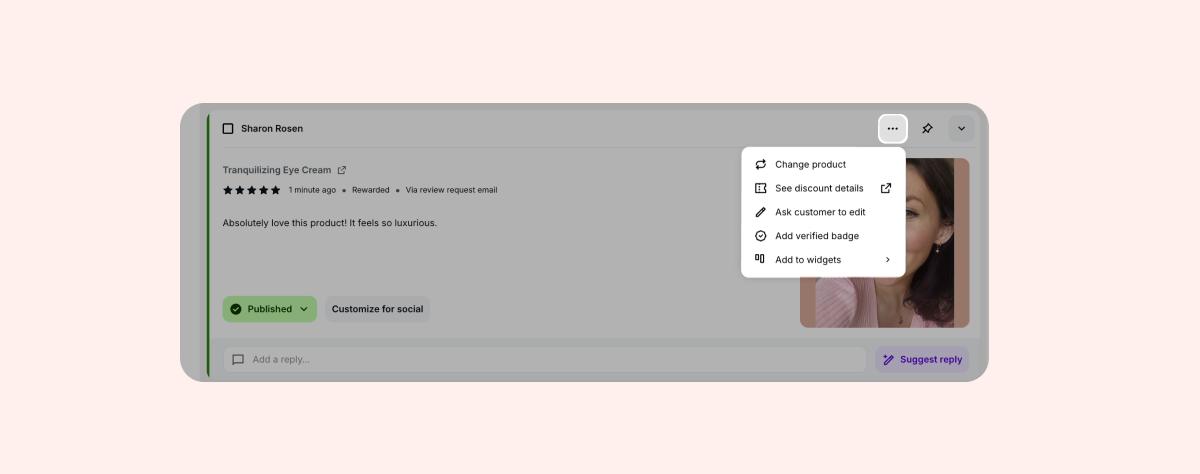
Change Product: Move a review to a different product. Learn more.
See discount details: See the full details of the discount the customer received in exchange for a photo/video review. This option will only appear when a customer received a discount.
Add/Remove verified badge: Add a "Verified purchase" badge to verified reviews you have imported from a previous source. Learn more about Review Transparency.
Note: By default, Loox will display the "Verified purchase badge" for all reviews submitted through a Loox review request email.
Tag as rewarded: Add a "Rewarded" badge to reviews for which the reviewer received an incentive, like a future-purchase discount or loyalty points.
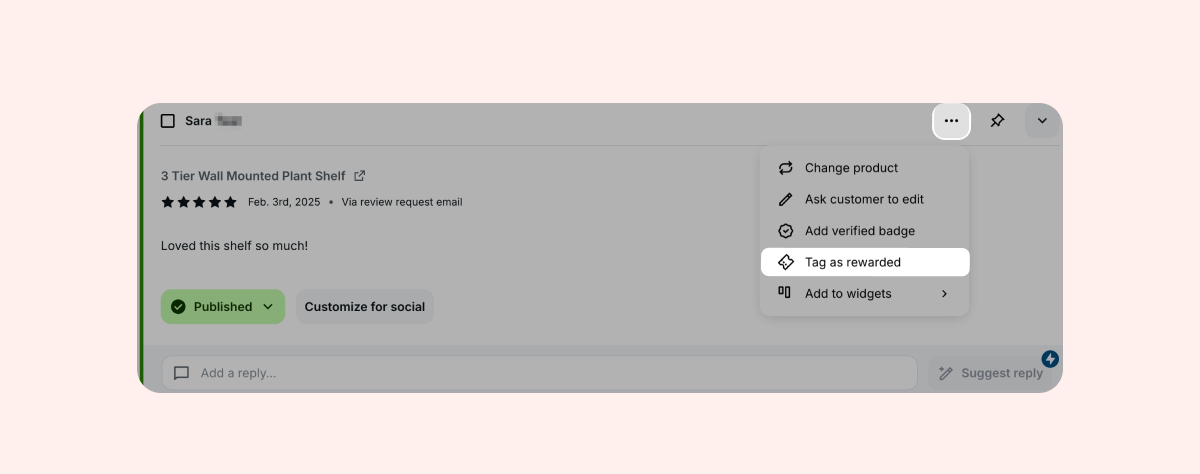
If you have it enabled in your Transparency settings, Loox will automatically add a "Rewarded" badge on your Reviews Widget on your live store for any photo or video review for which the reviewer received a future-purchase discount. If this is not enabled in your transparency settings, manually tagging the review as "Rewarded" will add an internal tag (only visible to you) in your Manage Reviews section and will not add the badge to your Reviews Widget.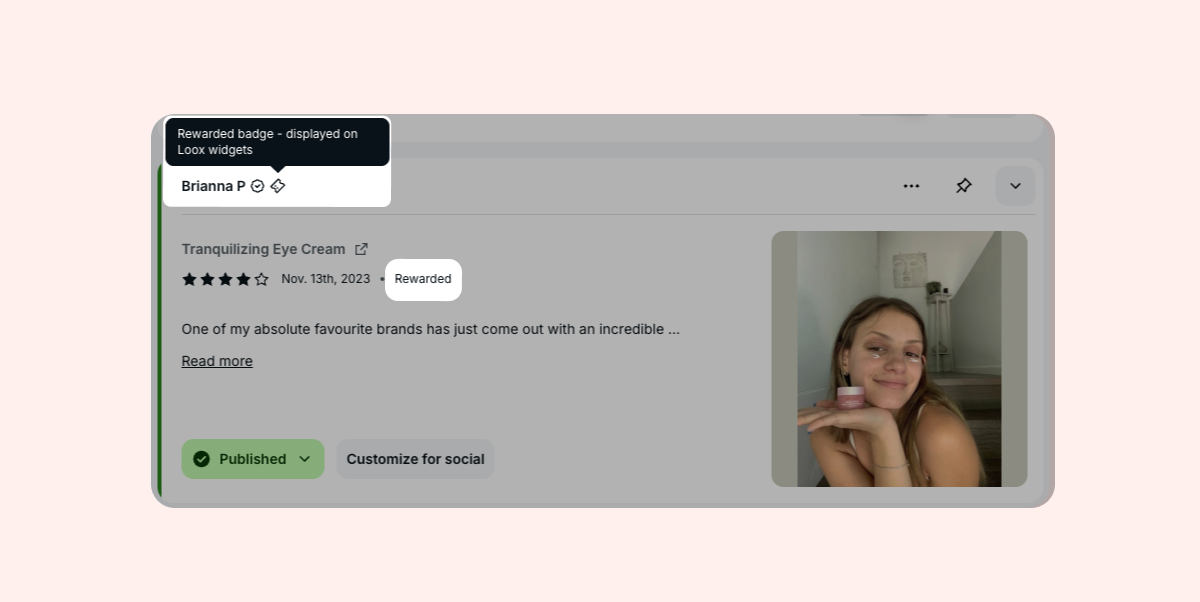
Add to widgets:
Add to/Remove from carousel: Add or remove reviews to your Carousel Widgets.
Add to Video Slider: Add or remove reviews to your Video Slider Widget.
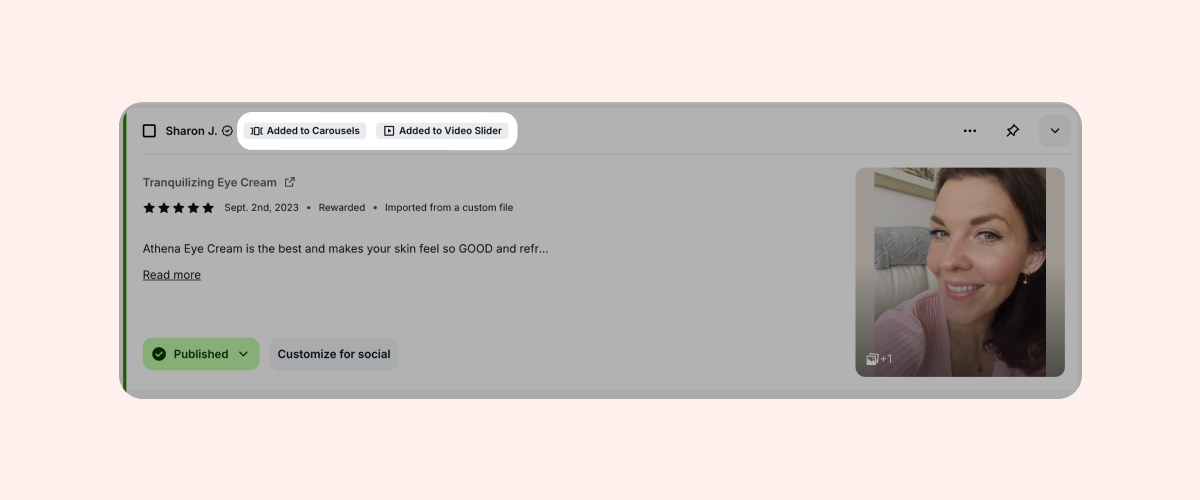
Once you add a review to your Carousels or Video Slider Widget, a little badge will appear at the top of the review card on the Manage Reviews Page to let you know at a glance where the review appears on your store:
Undo import: Remove a specific review that was imported incorrectly. This is only available on reviews that were imported in the last 7 days. Learn more about undoing full import files.
Notes:
- Undoing review imports must comply with your local laws and regulations. This action is irreversible, and the reviews will not be accessible again.
- To keep your reviews compliant, Loox offers automatic AI review flagging for reviews that violate content guidelines. Flagged reviews are marked as "Pending" and follow the 14-day publication window. Learn more about AI review flagging.
FAQs
Q: I imported reviews and now I see strange characters appearing in the text of the reviews. How do I fix it?
A: The appearance of special characters indicates that your file wasn't saved in CSV UTF-8 format. Learn how to undo the import within 7 days, then save the file in the correct format and import it again.
Q: Can reviews be edited?
A: While you can't edit a review on your end once it's been created, reviews can be edited by the customer through the Thank you email they receive. You can also send them an edit request email. Learn more.
Q: Can I hide the review date?
A: You can remove the date by disabling the Show review date toggle on your Reviews Widget Editor. Learn more.
Q: Can I manually add a public "Rewarded" badge on a review that received an incentive outside of Loox?
A: Yes - if you have the "Rewarded" badge enabled in your transparency settings, manually tagging a review as "Rewarded" will add the badge to your widget as well. Read more about your transparency settings.
Q: Can I delete a review from Loox?
A: Loox doesn't support deleting reviews. If a review was imported incorrectly, you can undo the import from your Loox admin to remove it. Customers can choose to delete their review after submission. Learn more.
Q: Someone left a review on the wrong product. Can I change the product a review is linked to?
A: If a review is related to a different product than the one that was originally reviewed, you can reassign the review to the correct product directly from your Loox admin. Learn more.
Q: How can I search for reviews of deleted products? My deleted products aren't appearing in the product picker at the top of the page.
A: Open the Advanced Search dropdown menu to the right of the search bar at the top of the page. There, you can choose to search your reviews by product title, which will allow you to find reviews of deleted products.
Q: Can I publish or unpublish just a few reviews at once, instead of everything that matches my filters?
A: Yes. Click the checkbox on each review you want to include, then choose Publish all or Unpublish all in the action bar at the bottom of the page. Only the reviews you selected are affected.
Q: I selected reviews on one page and moved to the next page. Did I lose my selection?
A: No. Your selection stays in place as you move between pages, and the count at the top of the page shows the total number of reviews selected. Changing your filters or running a new search starts you with a clean selection.
Q: One unpublish reason has to cover everything I selected. What if the reviews need different reasons?
A: Group them by reason. Select the reviews that share a reason, unpublish that selection, then repeat for the next group.