Our customizable review form provides your customers with the smoothest review submission experience.
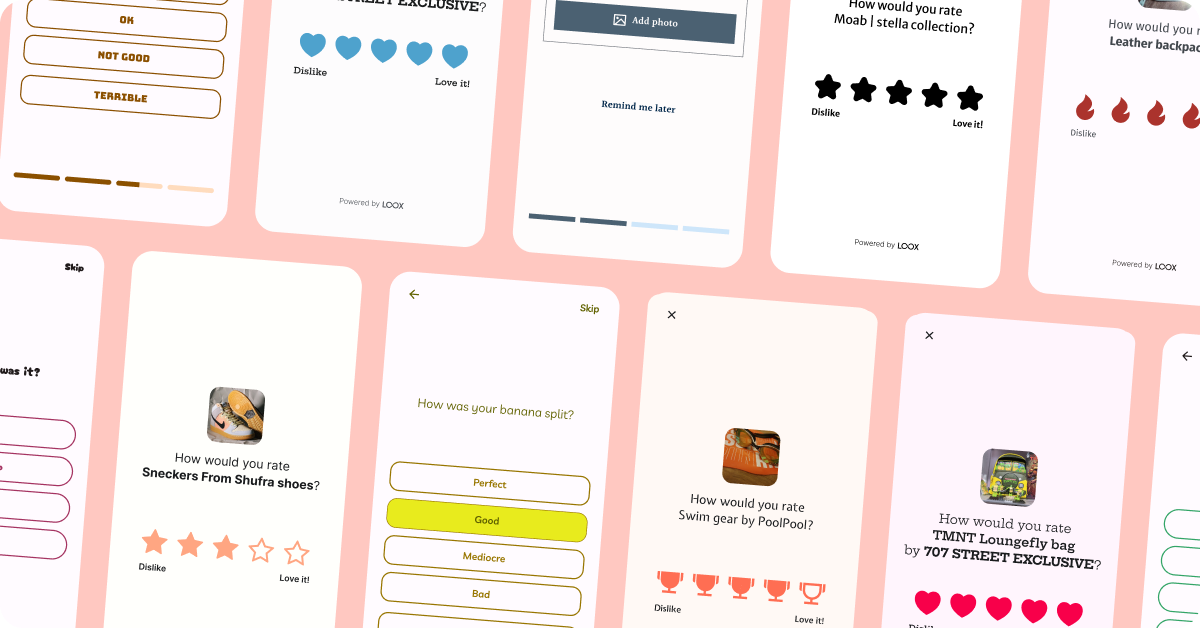
Review submission process
Customers can easily review your products using our review form.
The review form will be presented to customers when clicking the “Write a review” button (on the Review request email, or in your store):
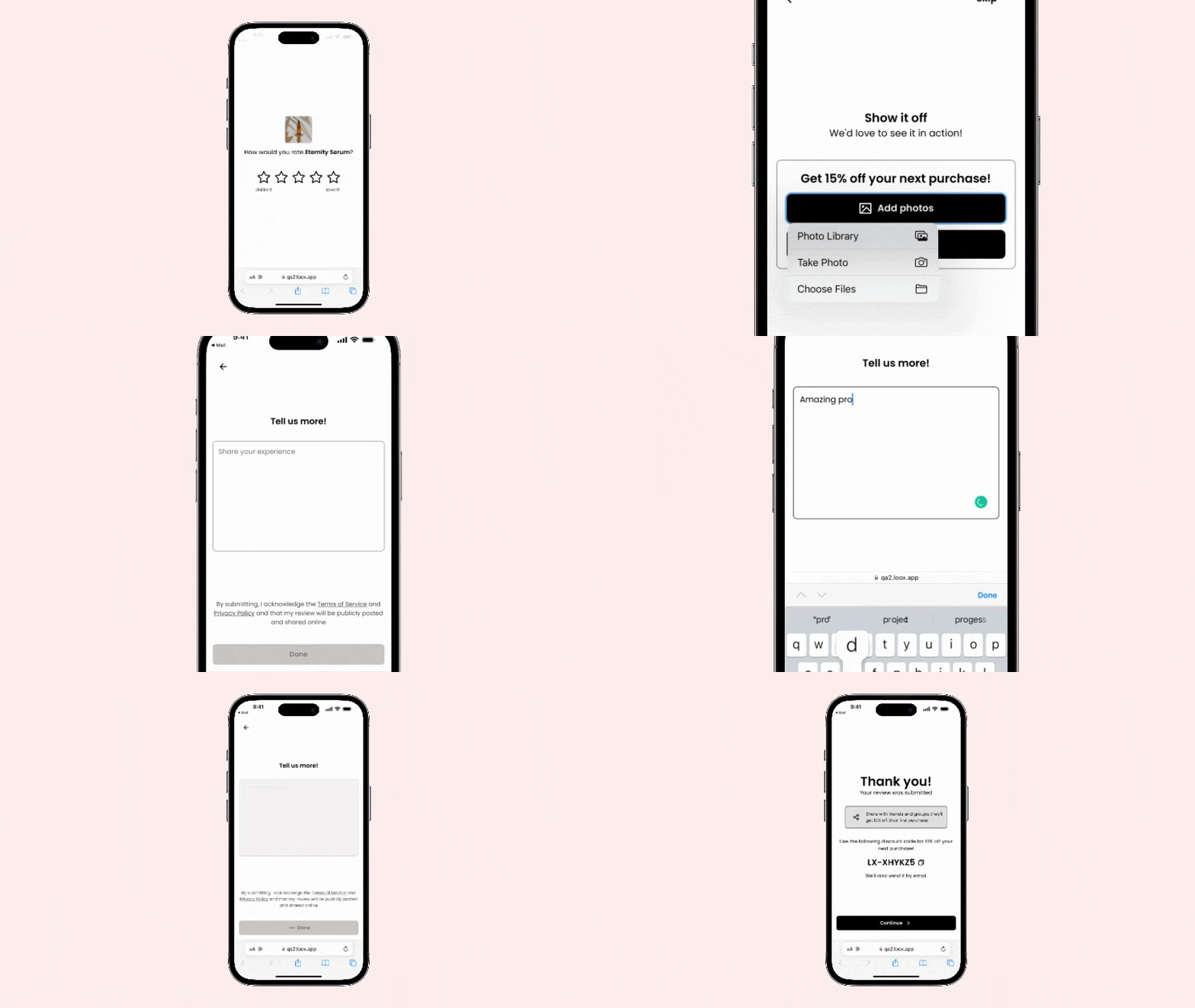
During the review submission process, customers can rate your products, upload photos or a video, and share a few words about their experience.
Customers who haven’t received their order yet can postpone the next review reminder from the review request email or from the review form. When they choose this option, Loox reschedules the next reminder for 7 days from that moment, which gives deliveries extra time to arrive before you ask for feedback. Read more about the tools Loox uses to help you manage negative feedback.
Note: Customers can upload up to five photos or one video per review.
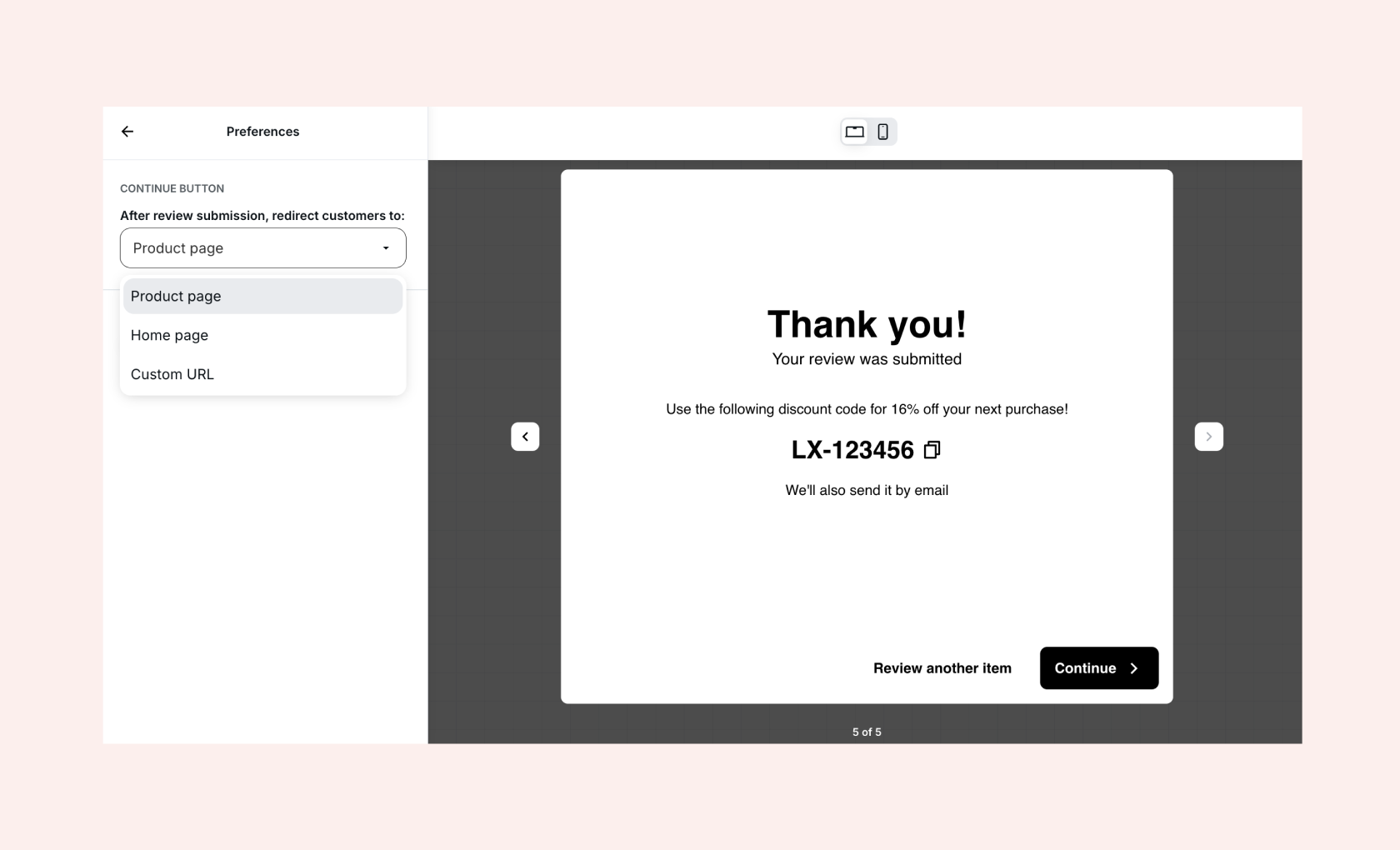
Tip: Customize the "Continue" button to match your brand and review flow. You can edit its label and decide where customers are redirected after they submit a review, such as the product page, homepage, or any custom page. Read more here.
How to customize the review form
Directly from its live editor, you can customize the form's appearance and text.
- In your Loox admin, go to Collect reviews > Review form.
- Under "Form customization", click Edit to open the live editor.
- Key customization options:
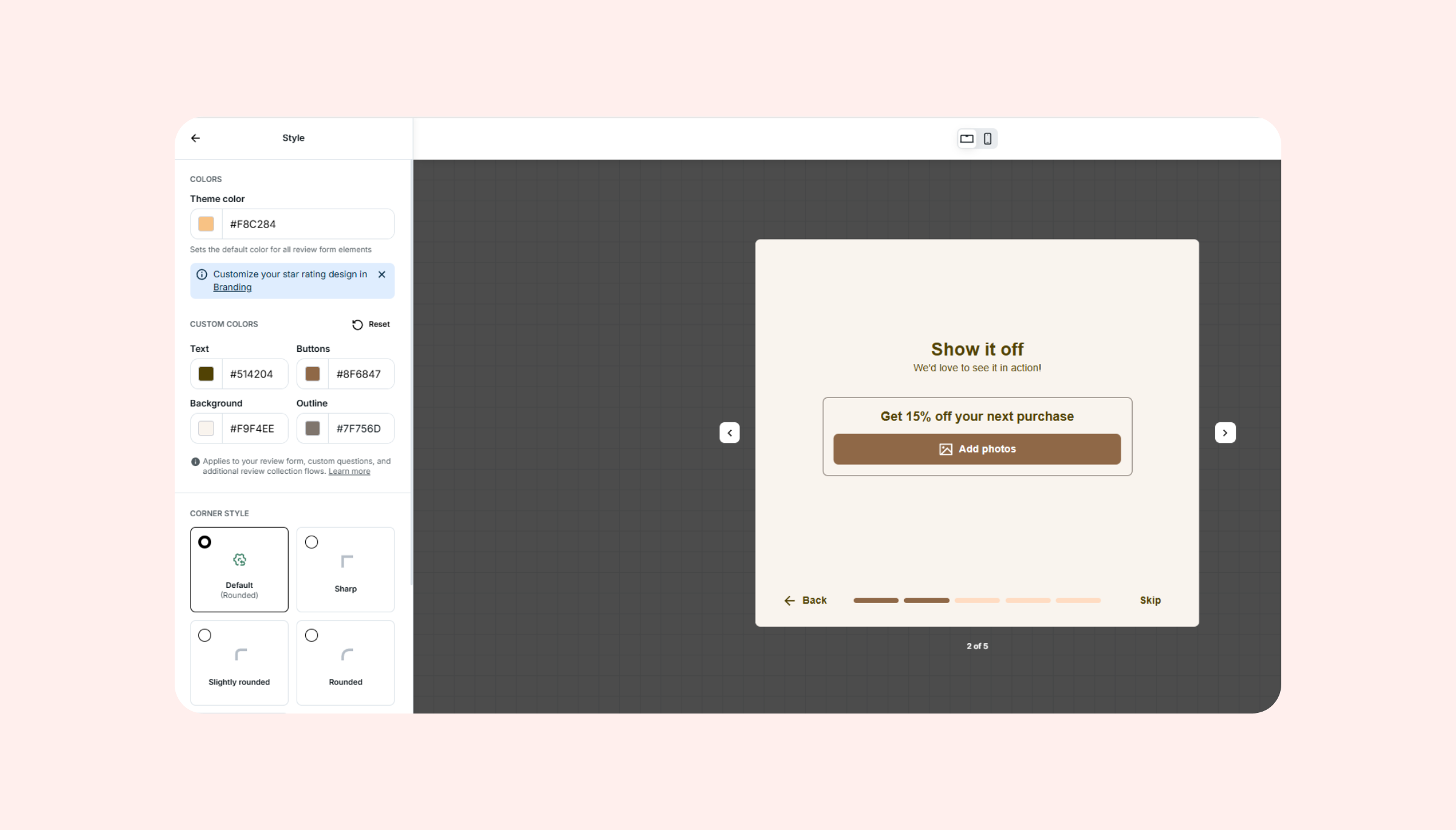
- Colors - Within "Style", set your Theme color and custom colors. See Customize your form's colors below
- Corner style - Within "Style", adjust the roundness of the form's border
- Collect video reviews - Within "Preferences", toggle on to allow customers to submit video reviews
- Texts - Within "Text", edit any text displayed on your review form
- To change the rating icons displayed on your Review form, see Changing Your Store's Star Rating
- Store Reviews - To make sure your customers also have the chance to submit a store review after their product review, make sure store reviews are enabled in your admin. They're enabled by default.
Note: 1-2 star ratings trigger a dedicated flow to help you collect feedback from customers. Learn more
Tip: Add custom questions to your review form to collect valuable insights from customers
Customize your form's colors
Within "Style", your Theme color sets the default color for all parts of your review form.
To choose specific colors, use the fields under Custom colors:
- Text - titles, body text, labels, the text customers type, and text buttons like Skip and Back
- Buttons - buttons, custom question answers, and the progress bar
- Background - the form's background and the inside of text fields
- Outline - the borders of text fields
Each field starts with the color your Theme color creates for it.
Note: Make sure your text is readable on your background. Choose Text and Background colors that stand out from each other, check that your button labels are readable on your Buttons color, and review the preview on desktop and mobile before you save.
Your colors apply to:
- Your review form
- Custom questions
- The pages customers see when they scan your QR code or click your review link
- Post-review referrals
- The edit review page
Star rating colors and icons are set in your Branding settings.
Resetting your colors
- To return all four fields to your Theme color, click Reset.
- To return a single field, delete its value.
Note: Changing your Theme color resets all four custom colors, including colors you changed.
Customize the post-review step
Within "Preferences", you can choose where customers go after they submit a review.
By default, once they click the "Continue" button, they are redirected to your store’s homepage. You can change this to any URL, such as the product page they reviewed, or a custom landing page.
- If your review flow continues outside Loox, you can redirect customers to the next step, such as an external review page or another platform where you collect feedback.
- If you want customers to stay engaged with your products, you can redirect them to a collection page so they can keep browsing.
Tip: within the "Text" section, you can also update the Continue button label to match your brand and post-review flow